
Document version history
Version number | Modified by | Modifications made | Date modified | Status |
1.0 | Shelf | Initial release of the document. | 19 Jan 2024 | Expired |
1.1 | Shelf | The document was updated to reflect major changes and improvements in the Shelf integration with Intercom platform. | 22 Oct 2025 | Active |
Document purpose
- What is the Shelf Content Integration Layer?
- What purposes does this feature serve?
- What is an Intercom connector?
- How is it configured?
- How is it used in practice?
Glossary
Prior to starting to learn about the Intercom connector and its configuration and usage, you need to learn the terminology used by Shelf.
Intercom (https://intercom.com) is an automated customer support platform that offers AI-enabled content management capabilities for their customers. For the purpose of this document, Intercom is identified as an external content storage.
Shelf KMS (Knowledge Management System) is a knowledge management platform that employs AI capabilities to create, edit, process, store, export/import, and otherwise handle various content. The platform sports multiple AI-enabled features such as Copilot, Semantic Search, Content Intelligence etc., all of which are intended to optimize and centralize customer organizations’ knowledge and provide fast, accurate, and consistent answers.
The Content Integration Layer (CIL) in Shelf Knowledge Management System (Shelf KMS) is a feature that allows for the seamless integration of various types and formats of content into the system. It enables users to import and organize content from various sources and knowledge repositories.
A connector is an entity that defines which external Content Management System Shelf KMS needs to connect to via Content Integration Layer (e.g. the Intercom connector is a set of API parameters to define how to connect Shelf to Intercom). Shelf KMS has a set of preconfigured connectors (Intercom, Zendesk, Sharepoint, Confluence connectors, etc.) but also allows for creating the custom ones.
A Pull connector is a connector that uses a prebuilt set of API parameters (for connecting with external CMSs and content storages like Google Drive, Notion, SharePoint, Zendesk, etc.) to pull content from a specific external platform into Shelf's CIL. All Shelf’s prebuilt connectors, including the Intercom connector, are of the Pull type.
A connection profile is a feature that allows users to establish a connection to various external applications or sources. It enables seamless integration and collaboration between Shelf KMS and other platforms such as external content repositories. Using Shelf’s connection profiles, users can import and synchronize various content and generally streamline workflows between Shelf KMS and external systems. This feature enhances the overall efficiency and effectiveness of knowledge management processes by enabling easy access to relevant information from different sources within the Shelf platform.
A sync flow is a feature that is responsible for the synchronization of content from external sources to Shelf KMS. Shelf’s sync flows can work on schedule or on demand, making it a versatile tool for content synchronization and prompt knowledge delivery.
Credentials is a set of unique identifiers—such as a username and password—that enables a user to verify identity in order to log in to an online account.
Access token is a unique identifier used to authenticate REST API requests submitted to Intercom by external platforms, systems, and applications. For the purpose of this document, access token is a unique identifier that allows Shelf KMS to access Intercom for content retrieval and synchronization.
Prerequisites
For proper operation of your Intercom connector and successful synchronization of your content from the Intercom platform into Shelf KMS, the following preconditions must be met:
- Admin Panel must be accessible on your Shelf KMS account
- Intercom developer account must be created and configured
- Content items (articles, documents, etc.) must be available in your Intercom repository.
Content Integration Layer and its purpose
The Content Integration Layer feature makes it possible to integrate various content types and formats into a single platform, Shelf KMS, from where users can further derive useful information to deliver accurate and relevant answers to their clients.
The Content Integration Layer ensures that content is indexed, tagged, and categorized appropriately, making it easily searchable and accessible to users within the knowledge management system. It provides capabilities for content mapping, transformation, and synchronization, enabling the consolidation and synchronization of data from multiple sources.
CIL also ensures that the latest version of content is always available to users and facilitates efficient content updating and maintenance.
Overall, the Content Integration Layer plays a crucial role in providing a centralized repository of relevant and up-to-date information, making it easier for users to find and access the knowledge they need.
The detailed information about the CIL feature can be found in the relevant chapters of the Shelf Content Integration Layer Feature User Guide available upon request.
Understanding the Content Integration Layer workflow
In-depth configurations and use cases of the Shelf Content Integration Layer are described in the dedicated Shelf Content Integration Layer Feature User Guide mentioned above, but the short example of the CIL workflow is as follows:
You access the Content Integration Layer feature in your Shelf KMS (Admin Panel).
You select one of Shelf-preconfigured connectors or create your custom one (based on the external content repository from which you need to sync content)
You create a connection profile that uses the selected or created connector, and configure it: indicate credentials (username/password/API key/token/etc.) to access your external repository. All these credentials and access details can be taken from that external platform, and in the respective section below we will show you how to get them on Intercom.
You create a sync flow that uses the created connection profile and configure this sync flow to run either on some specific schedule or on demand. It is here where you can apply filters to tell CIL which exactly content needs to be synced.
You run the created sync flow manually (if set to run on demand) or wait for the scheduled run, and get your content from the needed external source right in Shelf KMS.
For the proper operation of the Intercom connector to sync your content from Intercom into Shelf KMS, you need to do certain actions both in Intercom and in Shelf. Read the chapters below to learn what exactly you need to do.
Configurations on the Intercom side
Configurations you need to perform in Intercom mostly relate to creating a dedicated app for your Intercom Shelf integration, obtaining the access token for that integration, accessing your Intercom workspace, and, finally, managing your content there.
Before proceeding with the mentioned configuration procedure, make sure to log in to your Intercom developer account where you have previously created the relevant workspace.
Creating Shelf app in Intercom
To create a dedicated App for your Intercom Shelf integration, follow the below steps:
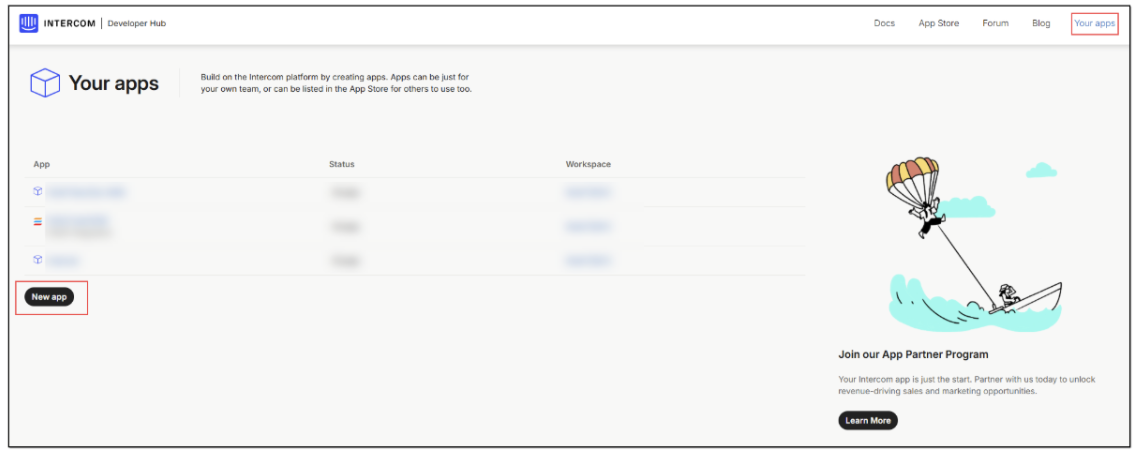 Figure 1. Accessing apps and starting building new app in Intercom
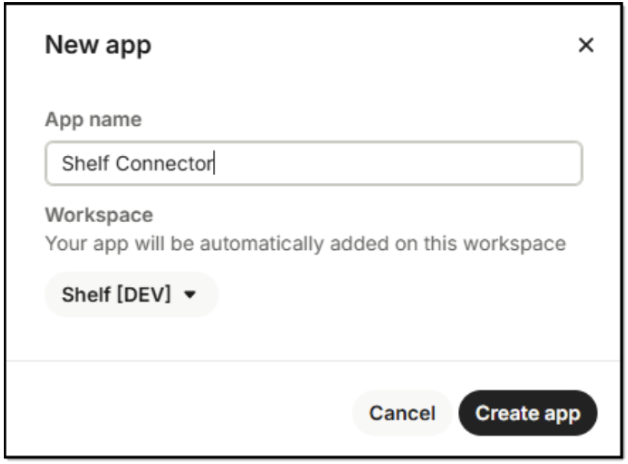 Figure 2. Creating Shelf app in Intercom
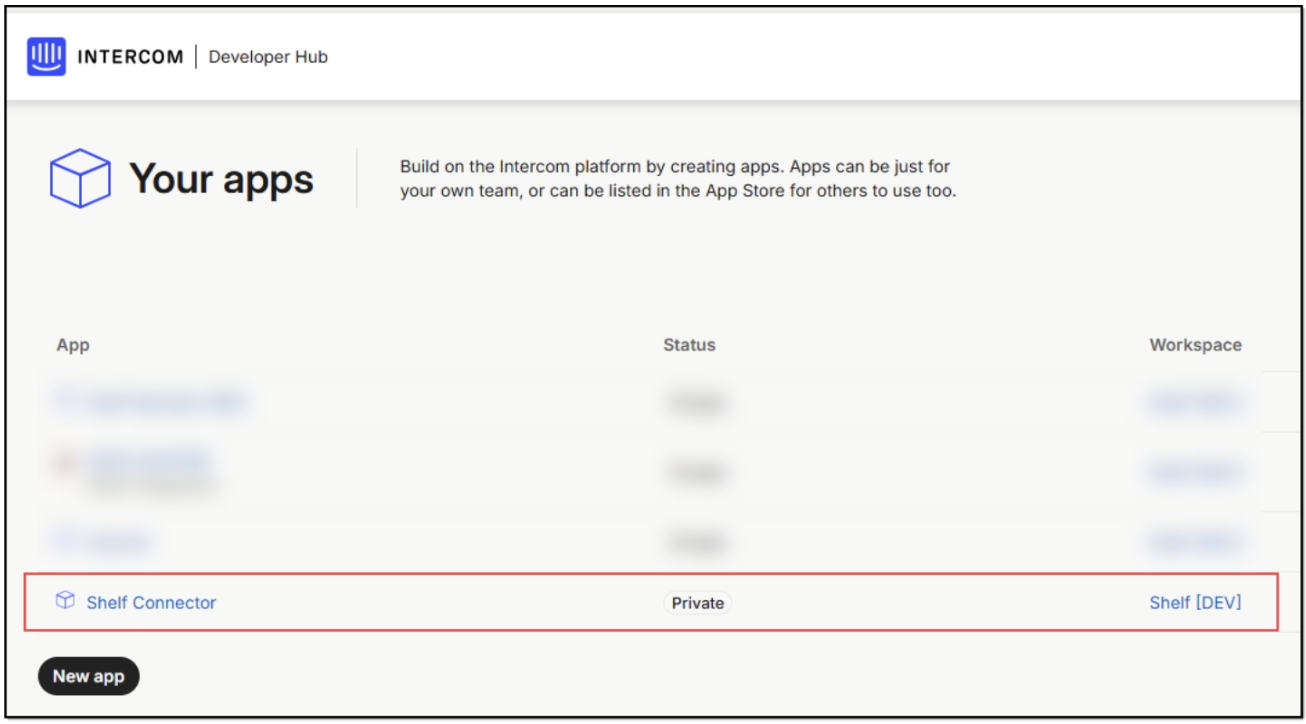 Figure 3. Viewing created Shelf app in Intercom
Obtaining access token in Intercom
Once you click the Create app button (see Figure 3 above), you are redirected to the Authentication page where you can find and copy the access token for further use. You will need it when performing configurations on the Shelf side.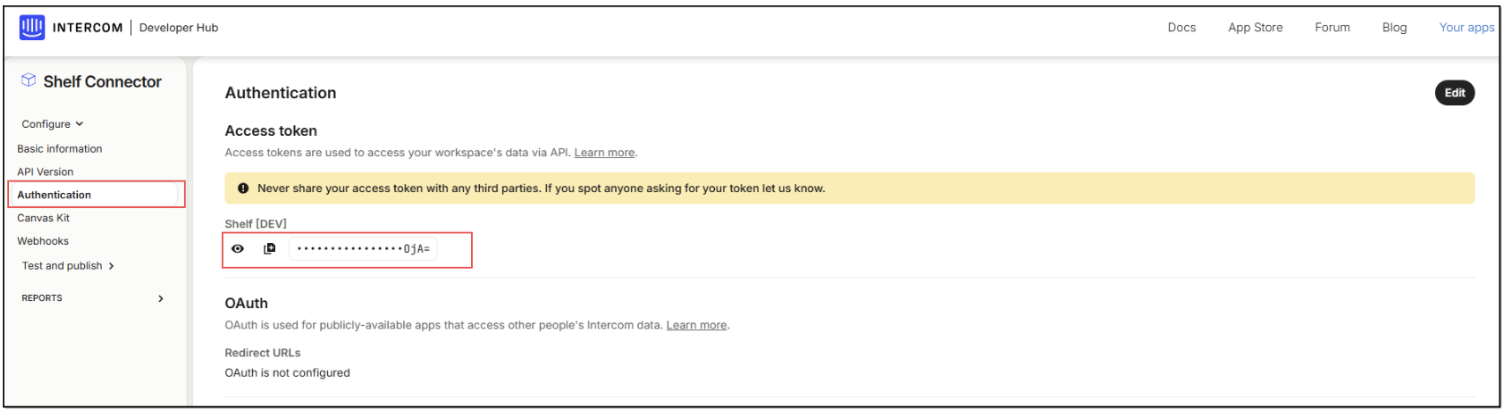 Figure 4. Finding and copying access token for your Intercom workspace
Managing content in Intercom
After copying and saving the access token for your Intercom workspace, you can access that workspace to check and prepare your content for proper syncing with Shelf KMS.
To do so, perform the following steps.
1) Go to the Test and publish menu in the navigation panel. You are redirected to the Your workspaces page where you can see your Intercom workspaces.
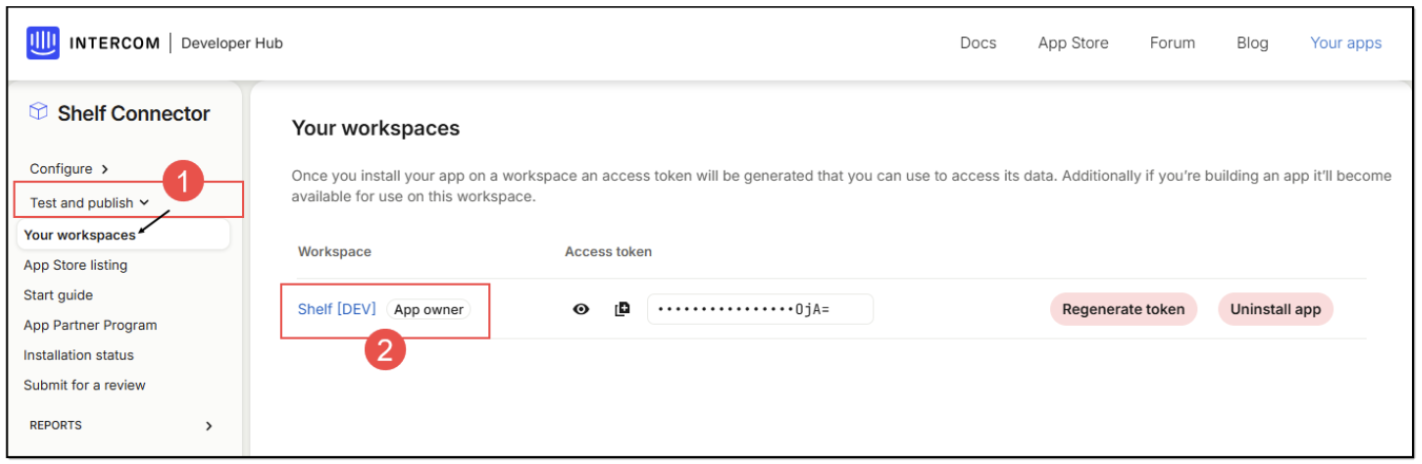 Figure 5. Accessing your workspaces in Intercom
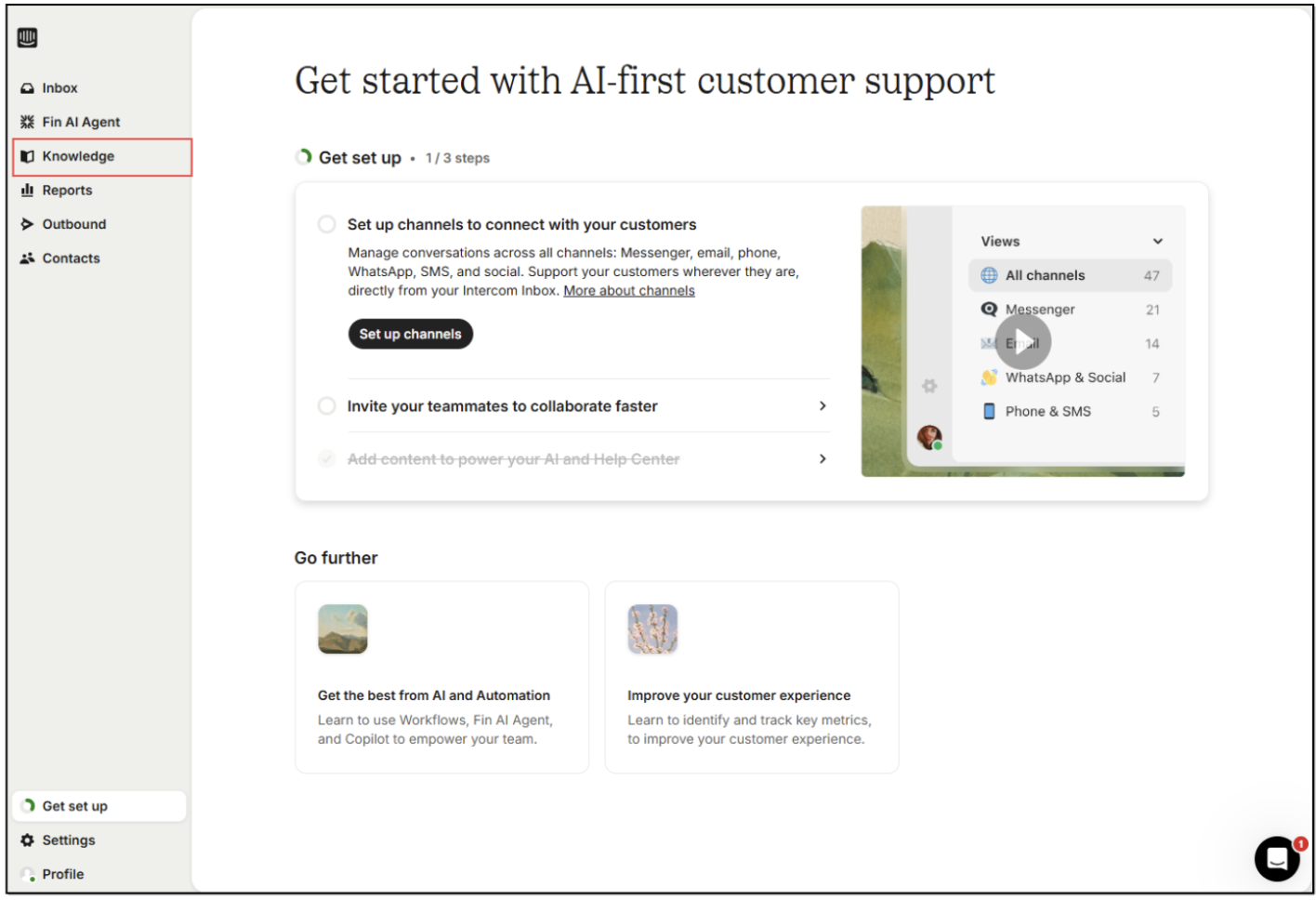 Figure 6. Accessing Knowledge feature in Intercom
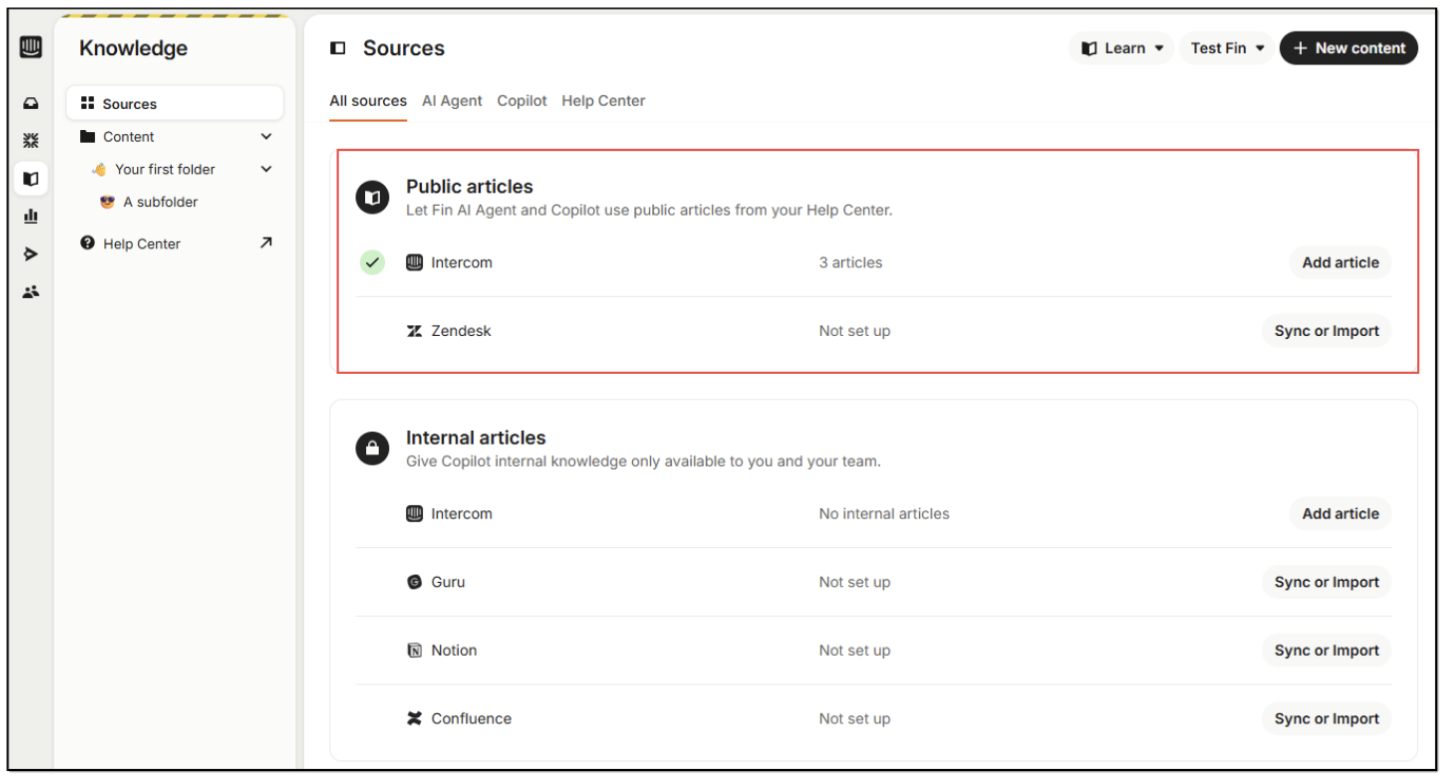 Figure 8. Viewing Knowledge Sources page and accessing content on Intercom
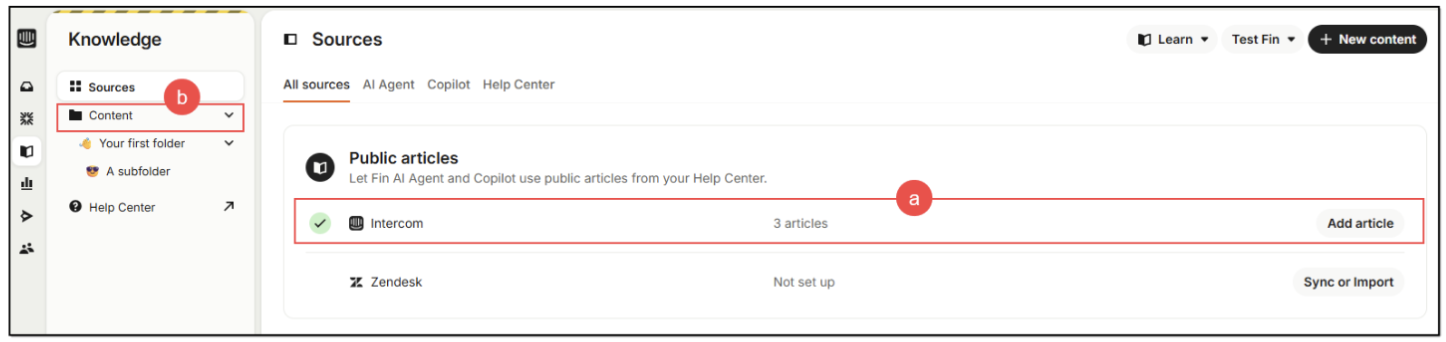 Figure 9. Accessing articles
 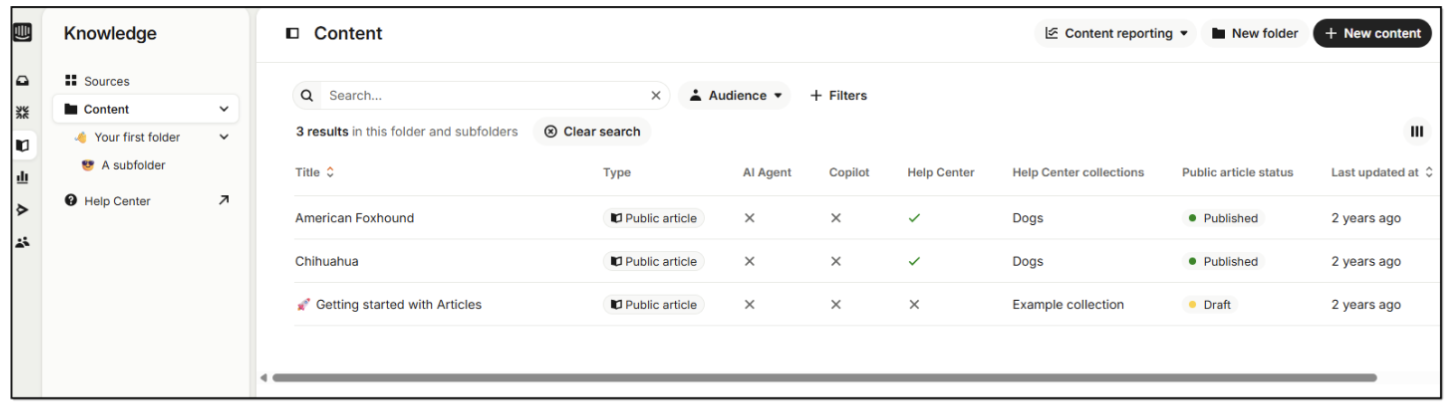 Figure 10. Viewing articles
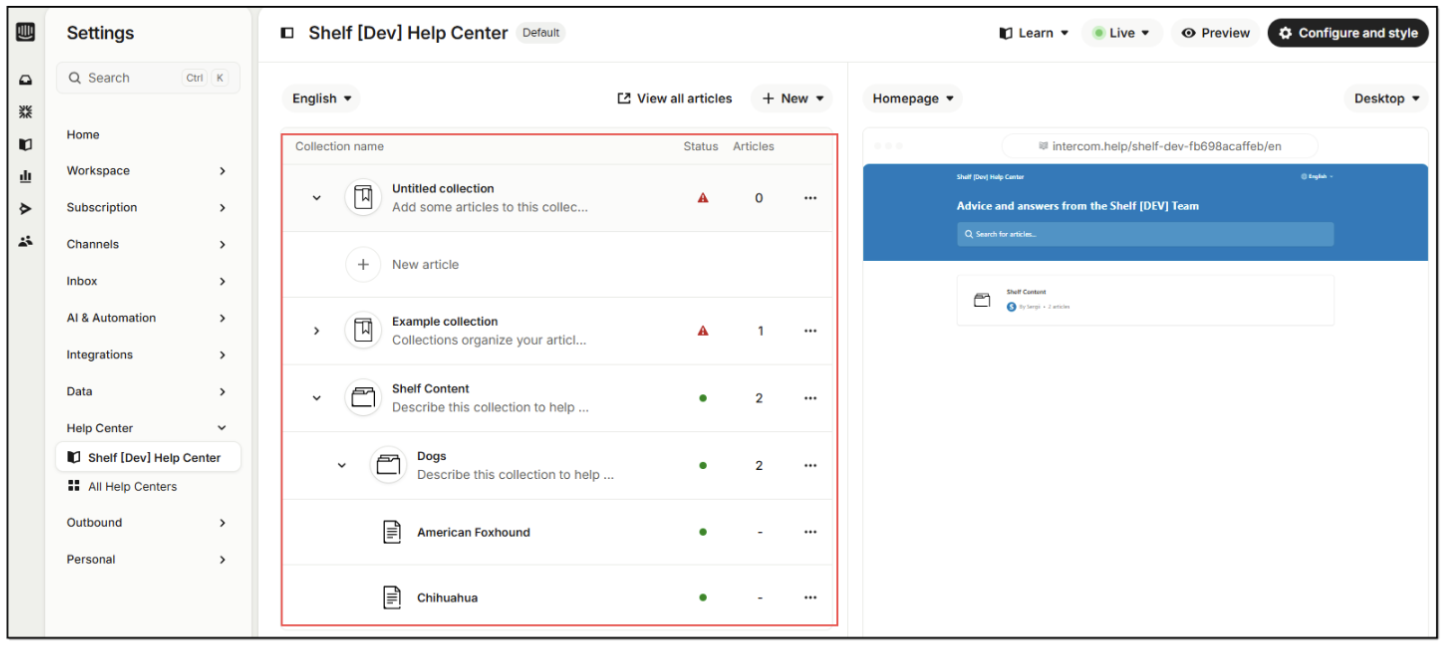 Figure 11. Viewing content collections
Or you can access this page by selecting the Content option in the navigation panel (see Figure 10 above).
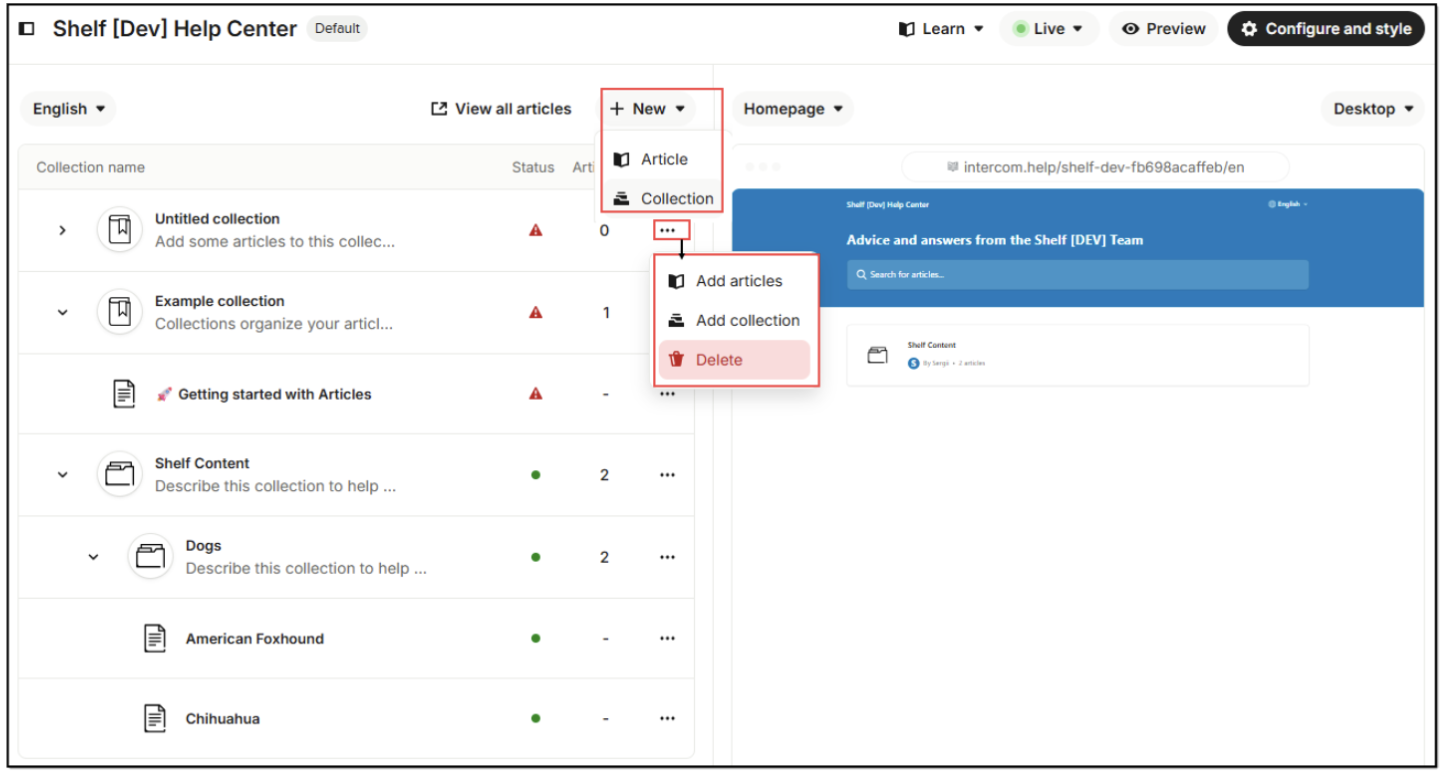 Figure 12. Managing collections and their content in Intercom
 Creating parent collections
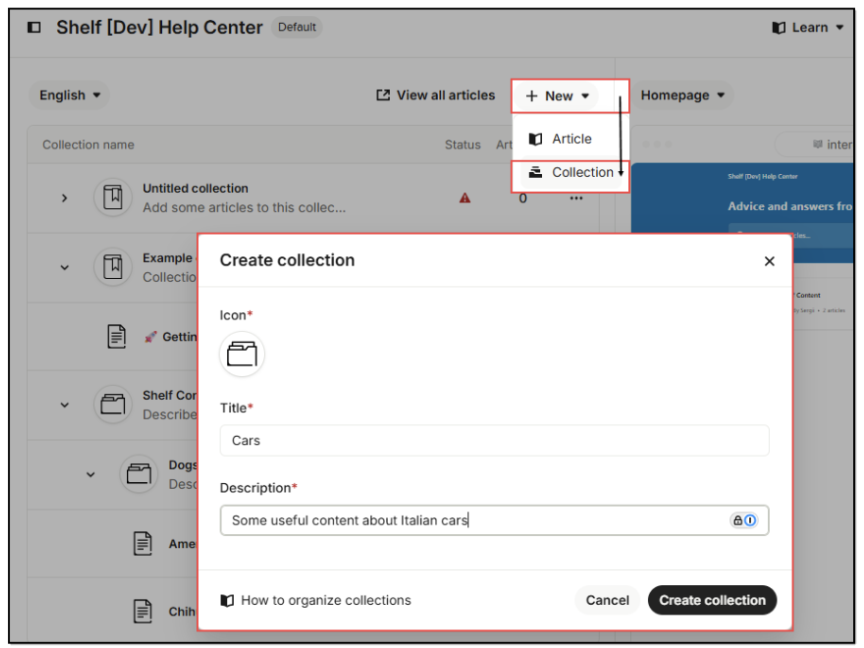 Figure 13. Creating parent collection in Intercom
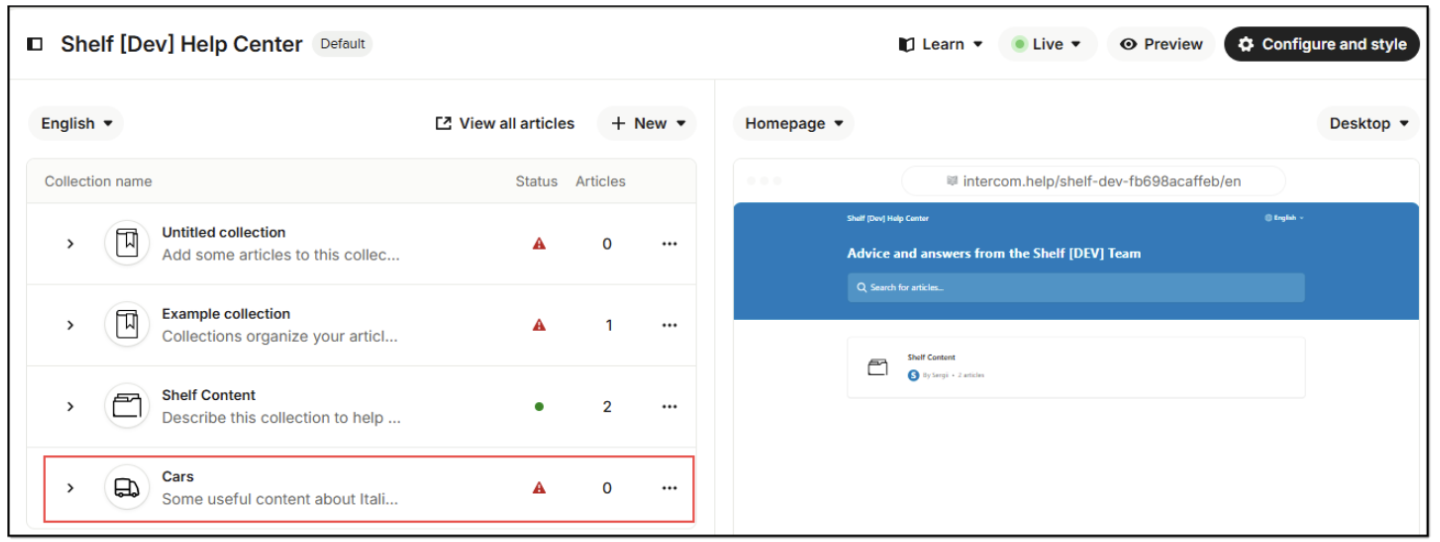 Figure 14. Verifying parent collection is created
Creating nested collections or folders
In addition to managing and creating parent collections in your Intercom workspace, you can also create nested collections or folders. To do so, follow the below steps.
1. Find a parent collection in which you want to create nested collection(s). Open its context menu by clicking on the respective menu button. Select the Add collection option from the dropdown menu.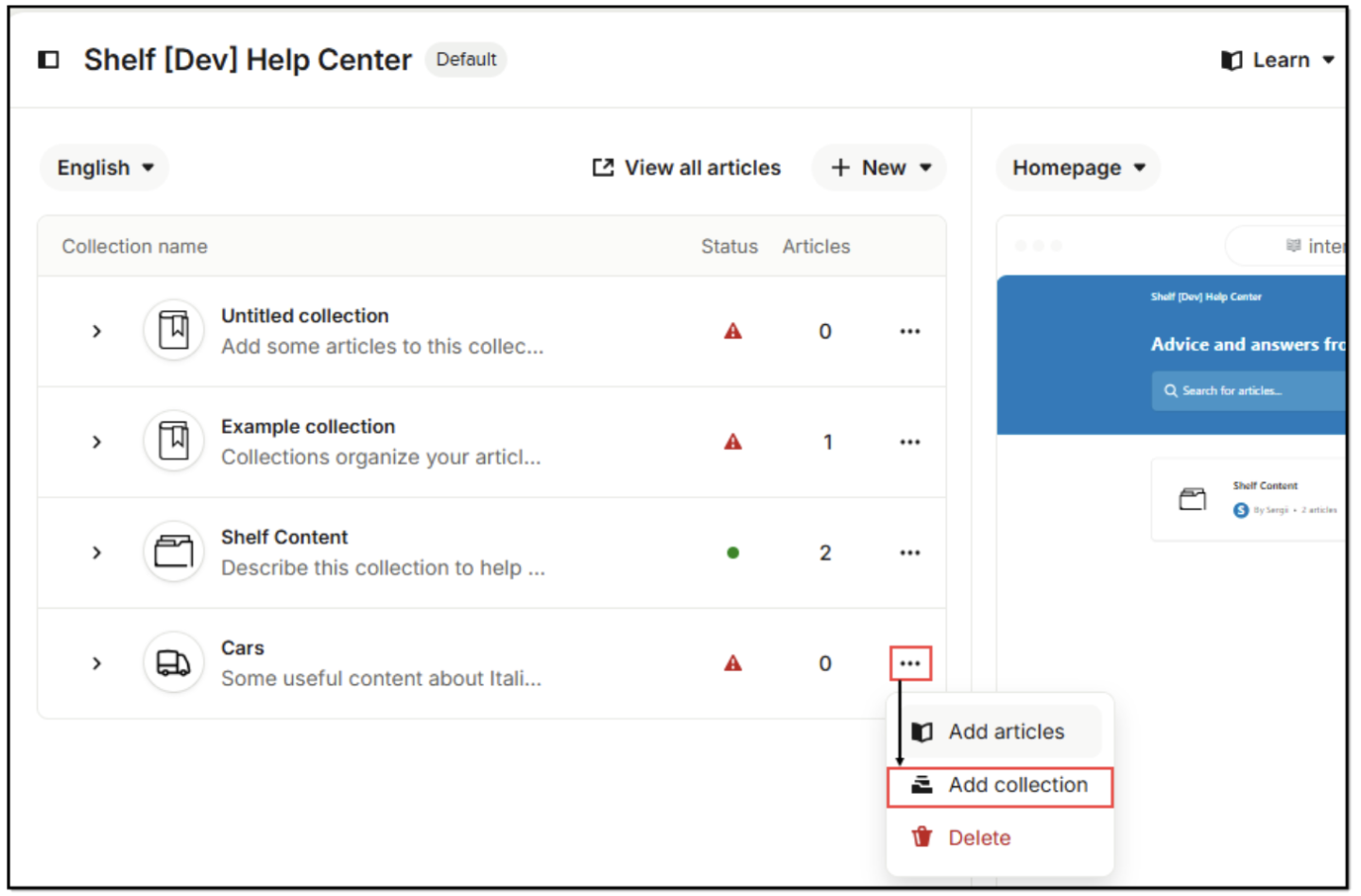 Figure 15. Creating nested collections/folders inside Intercom collections
2) In the modal window that opens, enter the name and description for your new nested collection. Once done, click Create collection. The created nested collection will appear on the list under its respective parent collection.
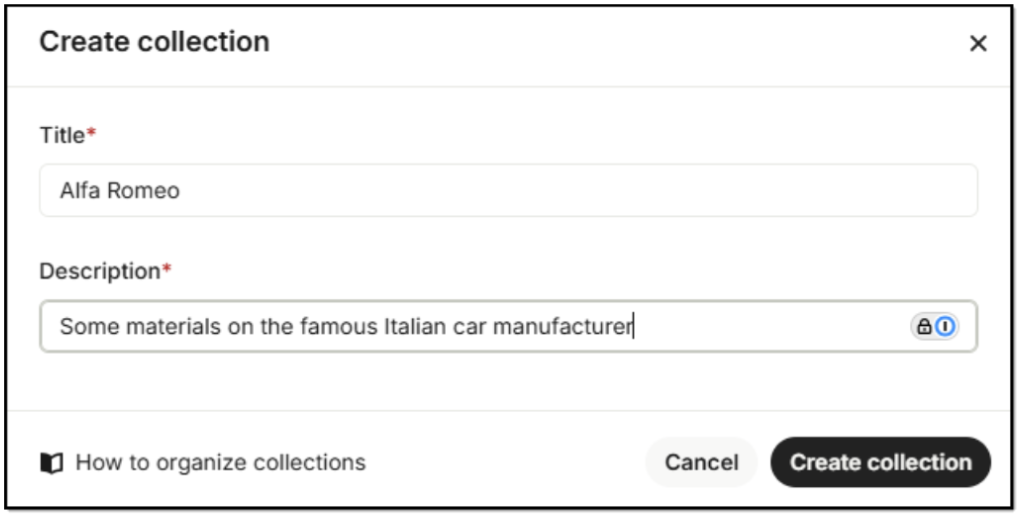 Figure 16. Adding nested collection/folder name and description
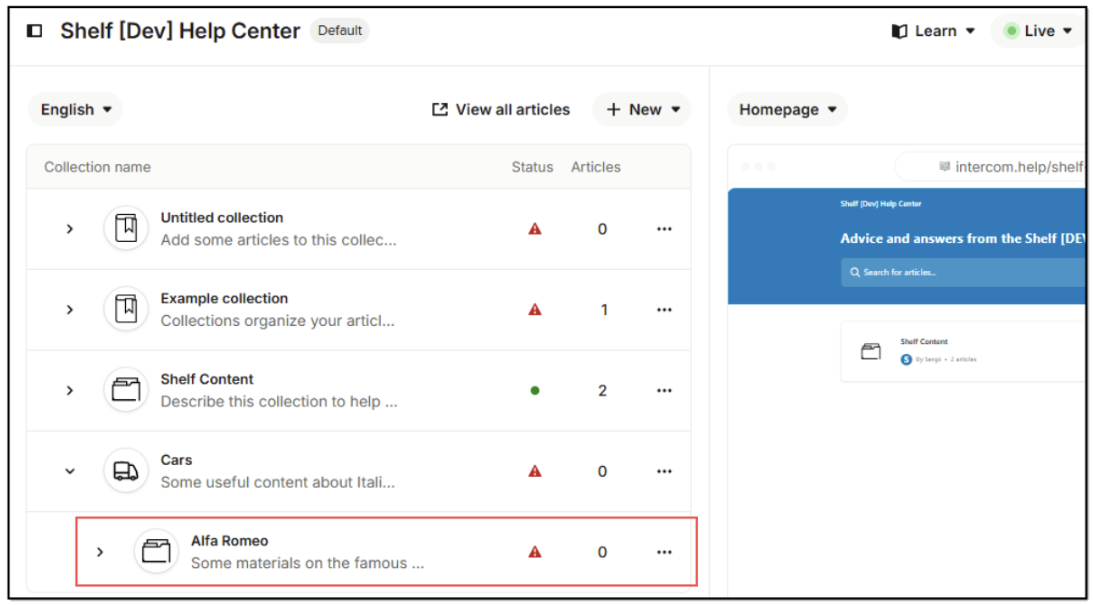 Figure 17. Verifying nested collection is created
Deleting collections
You can delete both parent and nested collections (folders) if you no longer need them.
To do so, perform the following steps.
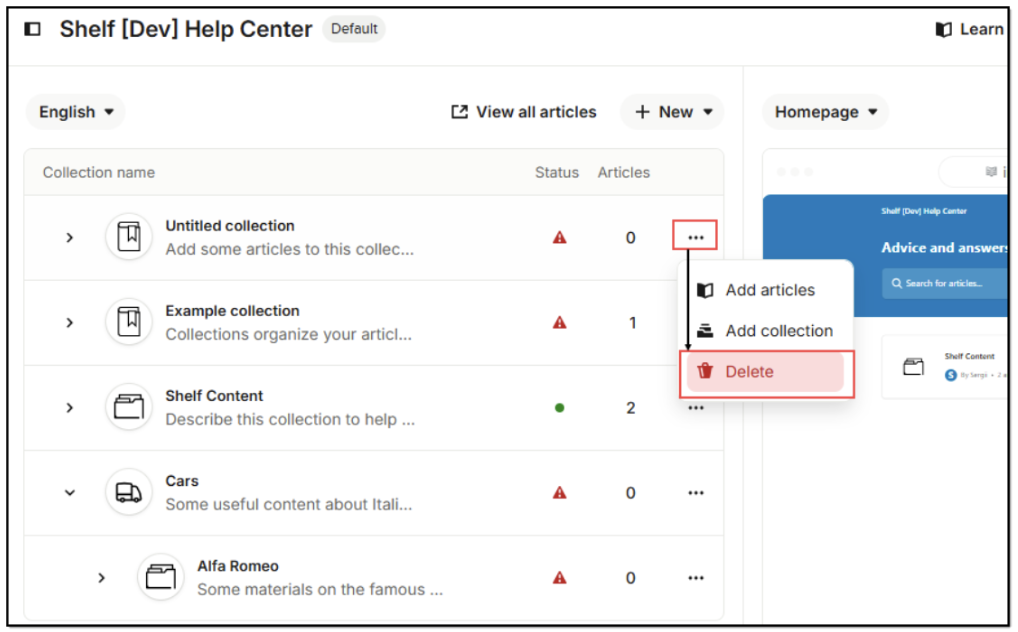 Figure 18. Deleting parent collection
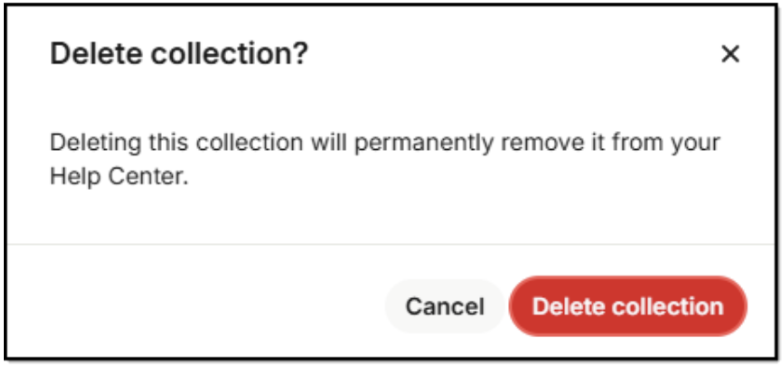 Figure 19. Confirming parent collection deletion
Once done, the parent collection is deleted and no longer displayed in the collection list.
For deleting a nested collection/folder, follow the same method: open the nested collection’s context menu and select the Delete option there. Then confirm the deletion in the popup modal window. The nested collection will be deleted from the list.
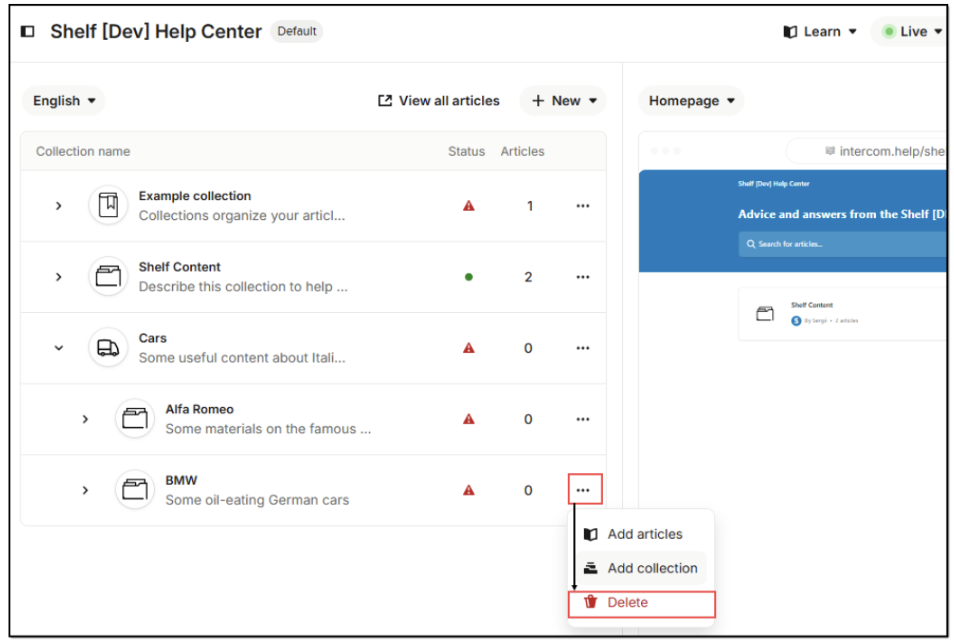 Figure 20. Deleting nested collection/folder
Creating or adding content
You can create a content item (or an article in the Intercom terminology) in Intercom in multiple ways.
Method 1. From the Knowledge>Sources page
When on the Knowledge>Sources page, click the + New content button in the upper right corner of the window and then select the needed content/article option in the modal window that opens.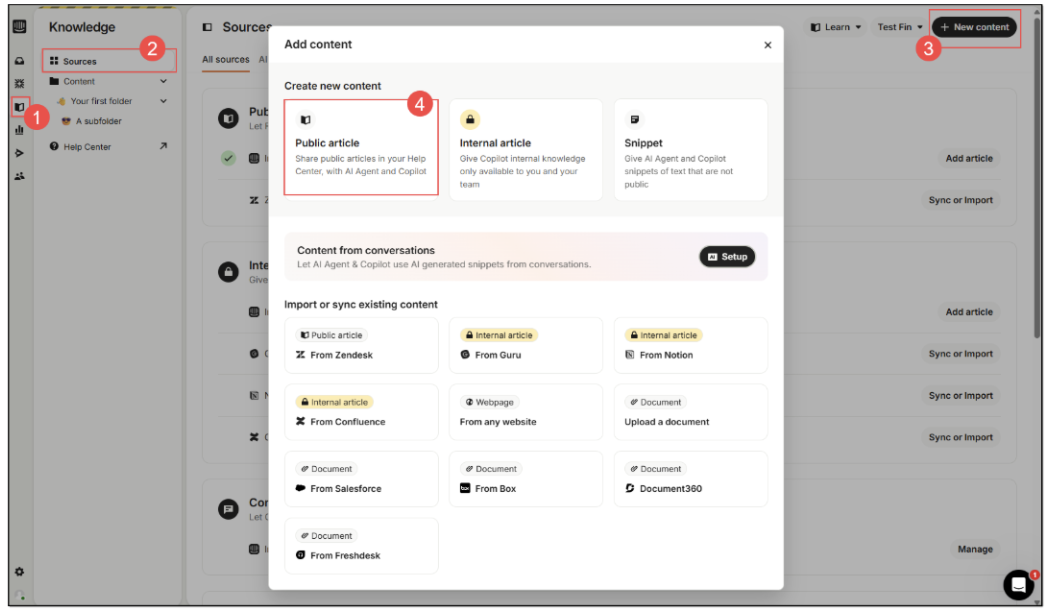 Figure 21. Starting to create content from Knowledge>Sources page
Method 2. From the Knowledge>Content page
When on the Knowledge>Content page, click the + New content button in the upper right corner of the window and then select the needed content/article option in the modal window that opens.
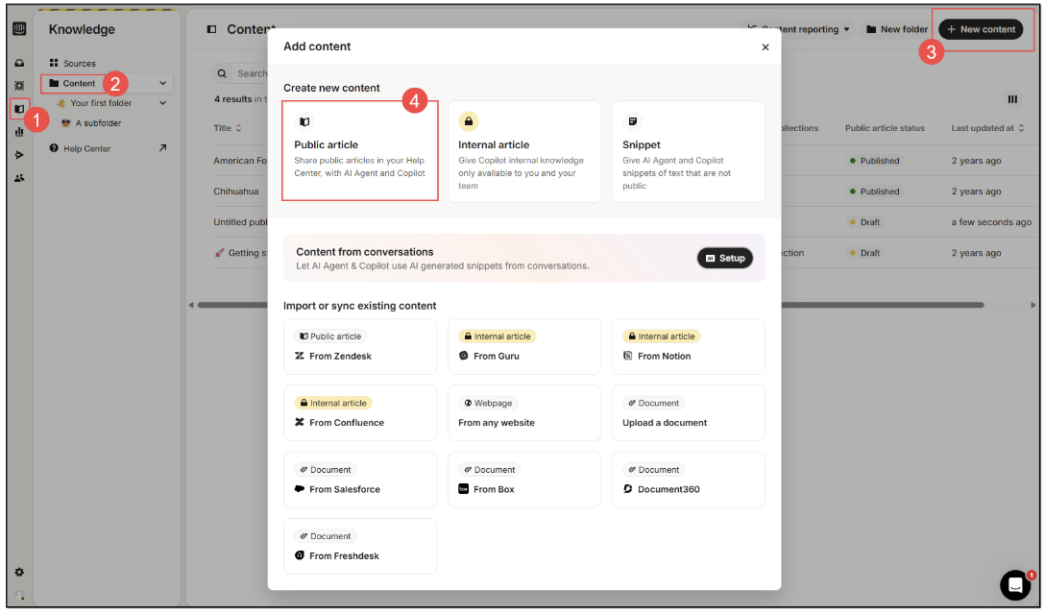 Figure 22. Starting to create content from Knowledge>Content page
Method 3. From parent collection context menu
Open the context menu of a parent collection where you want to create content and select the Add articles option in the dropdown list that opens.
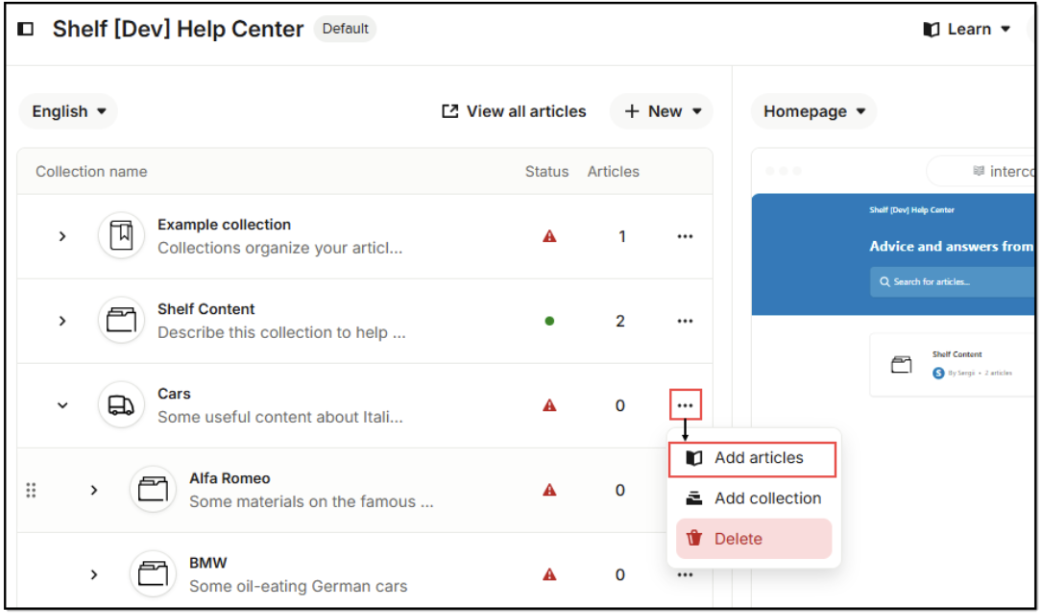 Figure 23. Starting to create content within parent collection
Method 4a. From nested collection context menu
Open the context menu of a nested collection where you want to create content and select the Add articles option in the dropdown list that opens.
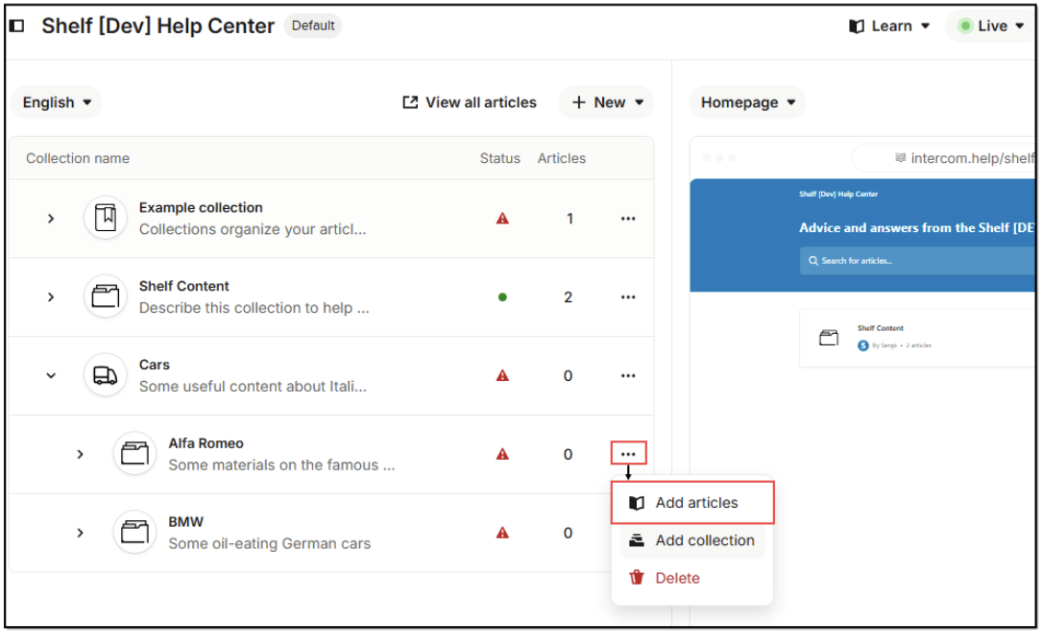 Figure 23. Starting to create content within nested collection - method A
Method 4b. From nested collection directly
Expand the nested collection in which you want to create some content and click + New article underneath.
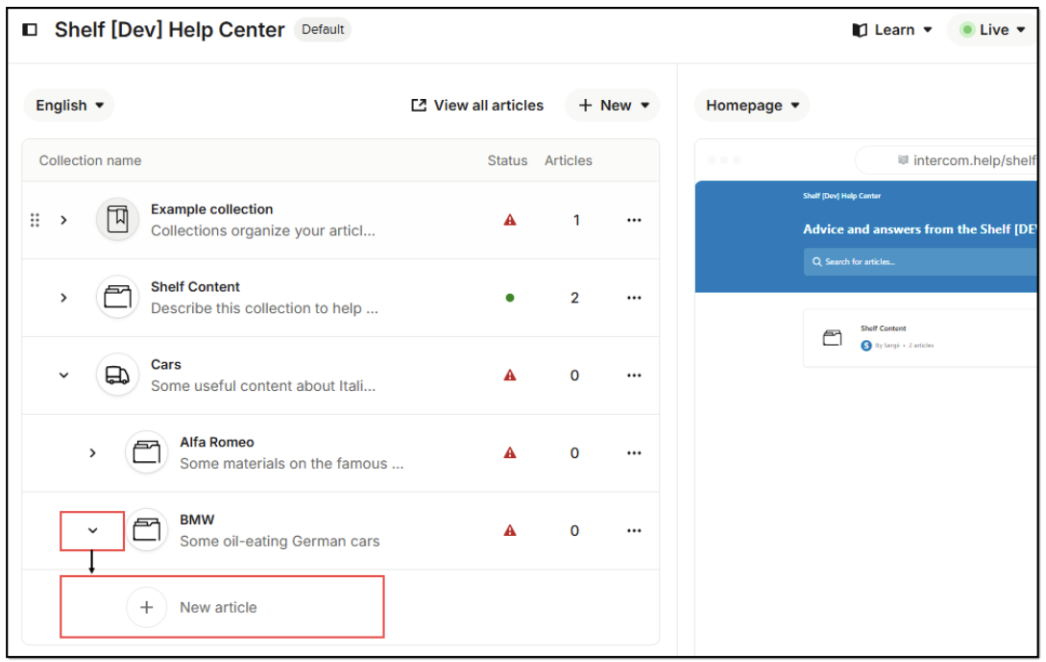 Figure 24. Starting to create content within nested collection - method B
All the methods mentioned above will direct you to the Article page, where you can:
Enter a title for your article
Add description to it
Enter content of the article, that is text, images, links etc.
Use basic rich text editing tools
Check the article details such as type, status, Id, language, author, creation date, contributor, last update date, and version history
Enable the article for use by AI agents
Set the article audience
Set the article’s collection from the available or create a new collection for the article
Save the article as draft
Publish the article
Cancel the article creation that is delete it.
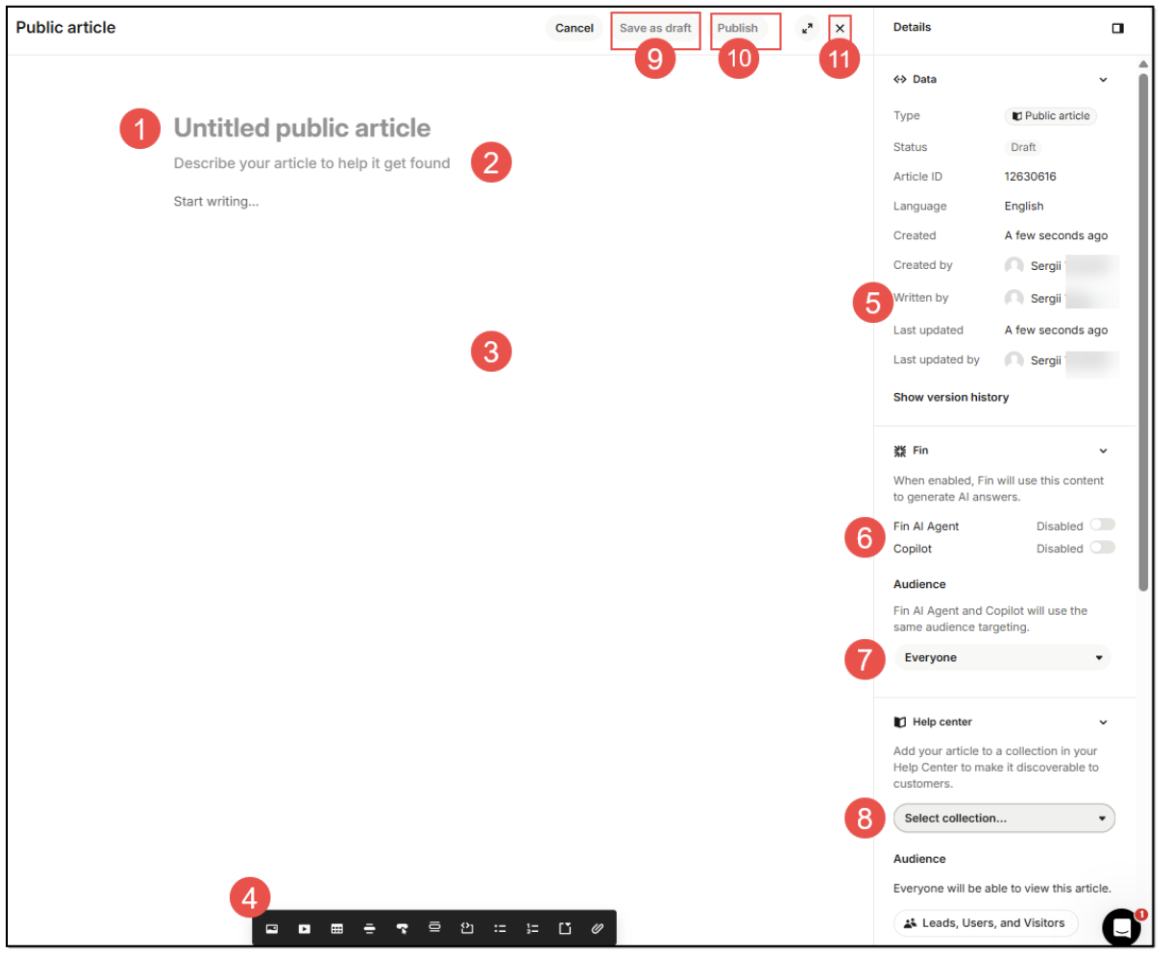 Figure 24. Creating article in Intercom
If needed, you can also create and add tags to the article and check reports on it, by scrolling down the Details pane.
Once done with the populating and configuring the article, click Publish to save and make it available to the public. After saving, the article becomes available both on the Knowledge>Content page and on the Help Center page. In the latter case, you can see that the newly created article is exactly where you have pointed it to - in the Cars collection.
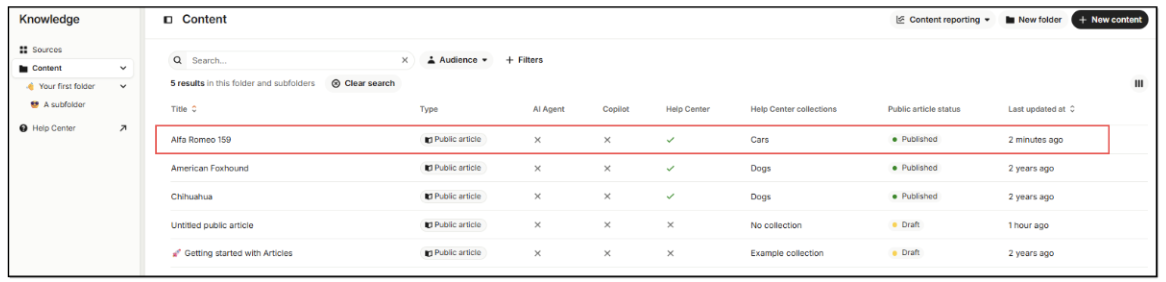
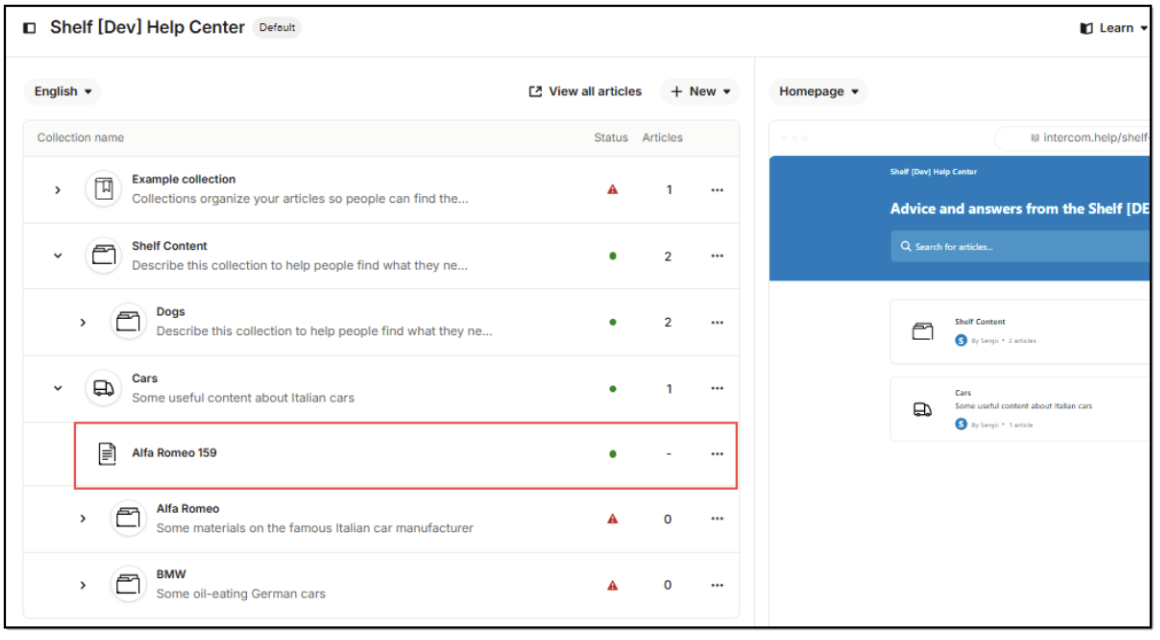 Figure 25. Verifying article is created and published for general use
If needed, you can later edit, relocate (move between parent and/or nested collection(s)), or delete the article(s).
❗Note:
Only the published articles are synced to Shelf KMS, so make sure to publish the content items you have in Intercom.
Now when you have properly configured your Intercom workspace, saved the access token for it, and learned how to manage/create content in Intercom, you can proceed to configurations on the Shelf side.
Configurations on the Shelf side
This chapter and its subsections describe the steps you need to take to get your Intercom connector configured and ready for use.
Accessing Content Integration Layer
From the standard workflow described above you see that to start configuring and using your Intercom connector, you need to access the Content Integration Layer feature. To do so, perform the following steps:
1) Log into your Shelf KMS account using valid credentials.
2) Once logged in, go to the Admin panel by selecting the respective option in the dropdown menu.
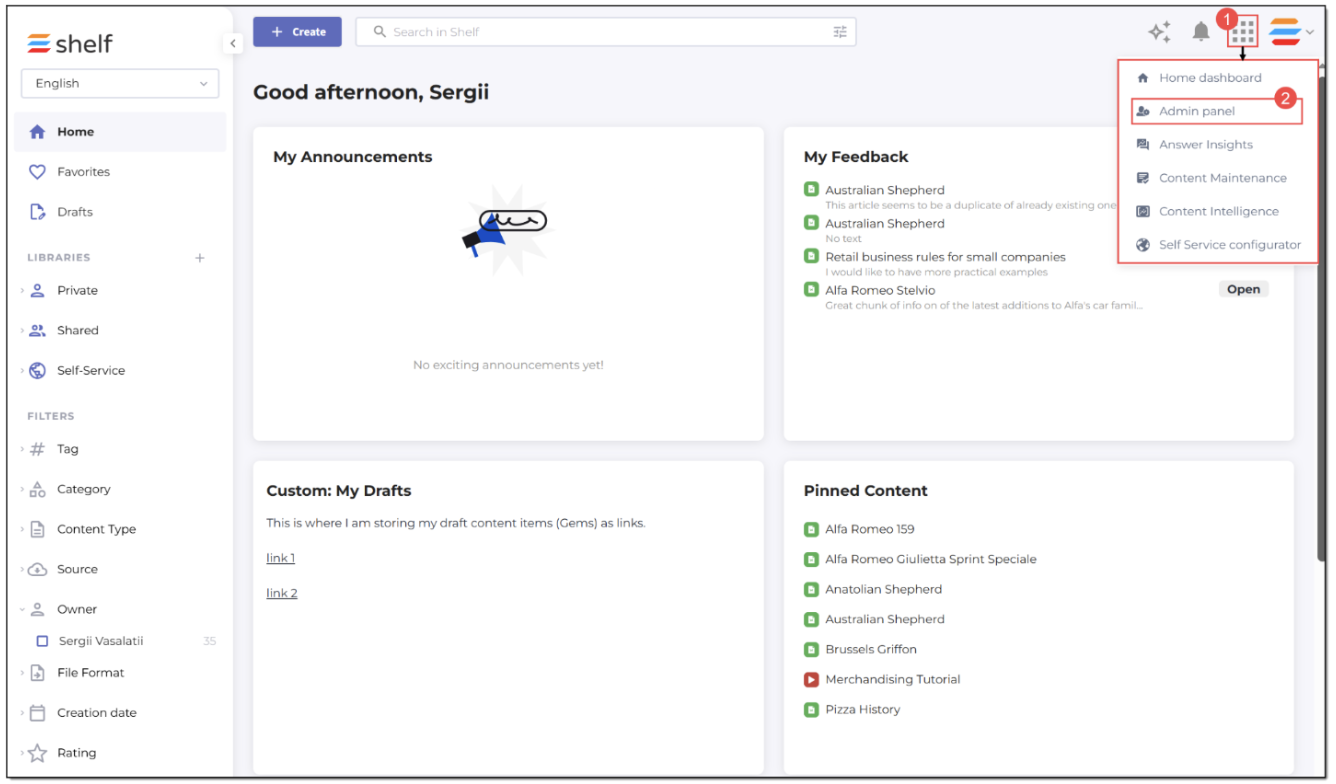 Figure 26. Accessing Admin panel in Shelf KMS
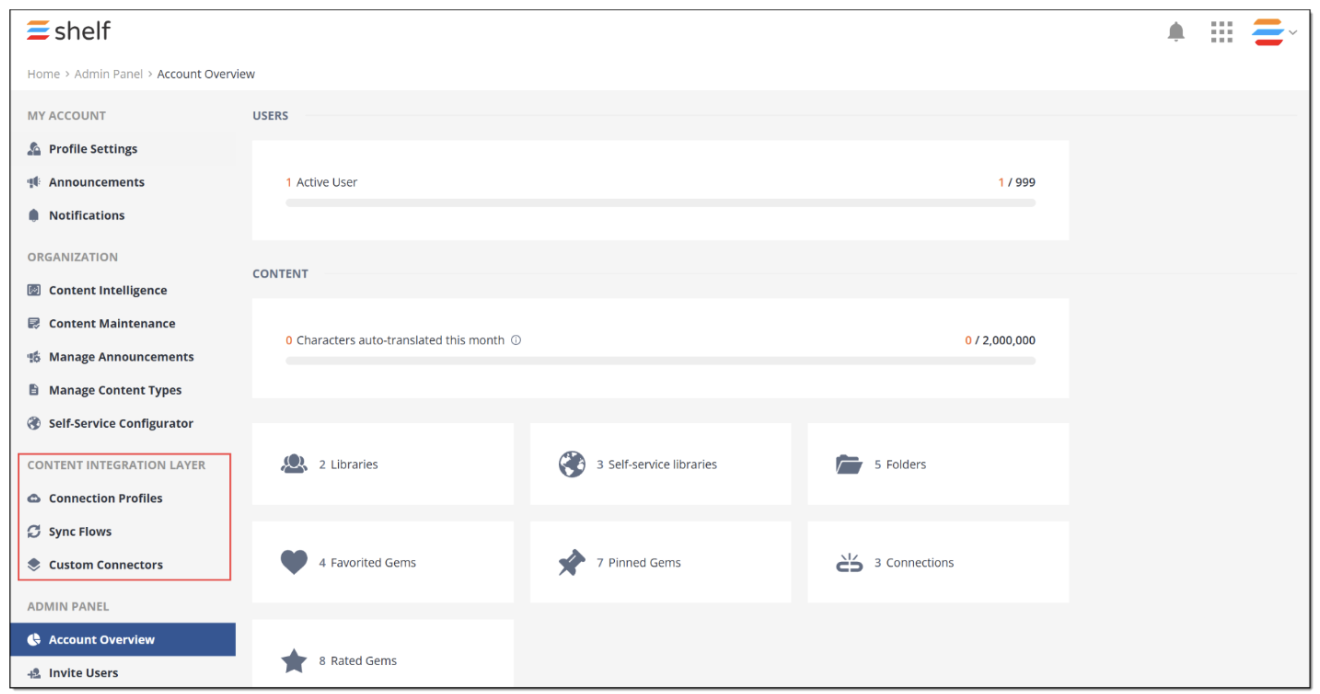 Figure 27. Accessing CIL modules in Admin panel
Configuring Intercom connector
In fact, no configurations are needed for your Intercom connector. It is prebuilt and preconfigured by Shelf. You can see it in the connector list that appears once you select the Custom Connectors option in the Content Integration Layer section.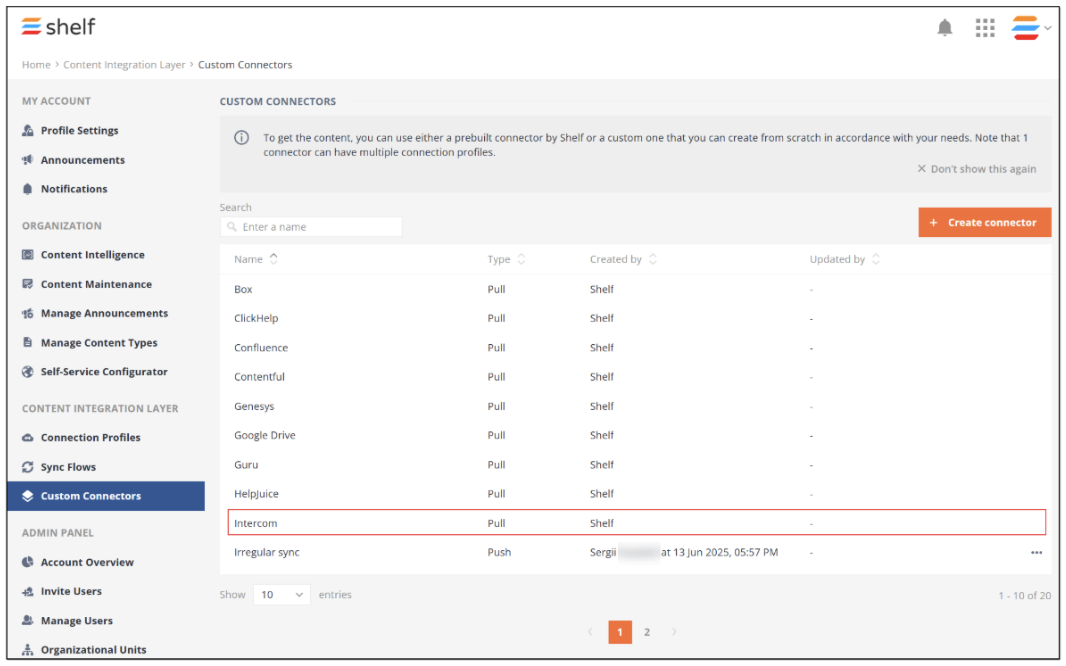 Figure 28. Viewing Intercom connector in CIL
What you need to do next is to create and configure a connection profile dedicated to work with the external content source such as your Intercom workspace.
Configuring Intercom connection profile
The Intercom connection profile is a feature that uses the prebuilt Intercom connector and allows Shelf KMS to access, authenticate on Intercom, and communicate with it to find and sync content stored there. But to enable its proper operation, you need to create and configure it as described in the procedure below.
1) In the Admin panel in Shelf KMS, go to the Content Integration Layer section, find and select the Connection Profiles option.
2) In the CONNECTION PROFILES window that appears, you see the list of available connection profiles. Neither the prebuilt nor other custom connection profiles can be used for communicating with Intercom, so you need to create a new connection profile. Click the Create connection profile button to start.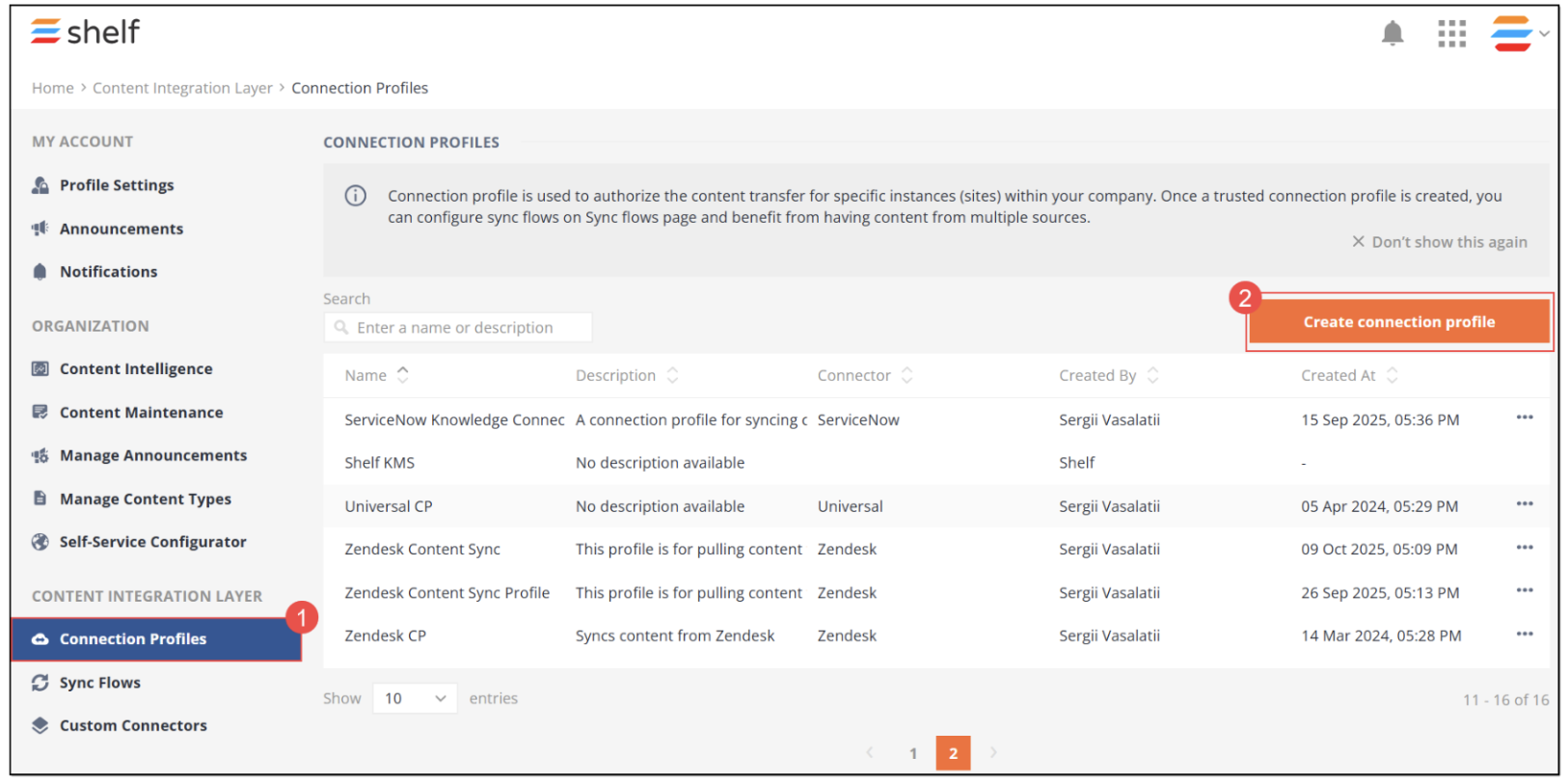 Figure 29. Accessing CIL connection profiles and starting creating new connection profile
3) The CREATE CONNECTION PROFILE page that opens is where you need to do all the configurations for the Intercom connection profile you create. You need to indicate the connector (1) — Intercom — to be used for the profile, add a name (2) and, if desired, some description (3) for your connection profile, and, finally, fill in the CREDENTIALS section (4).
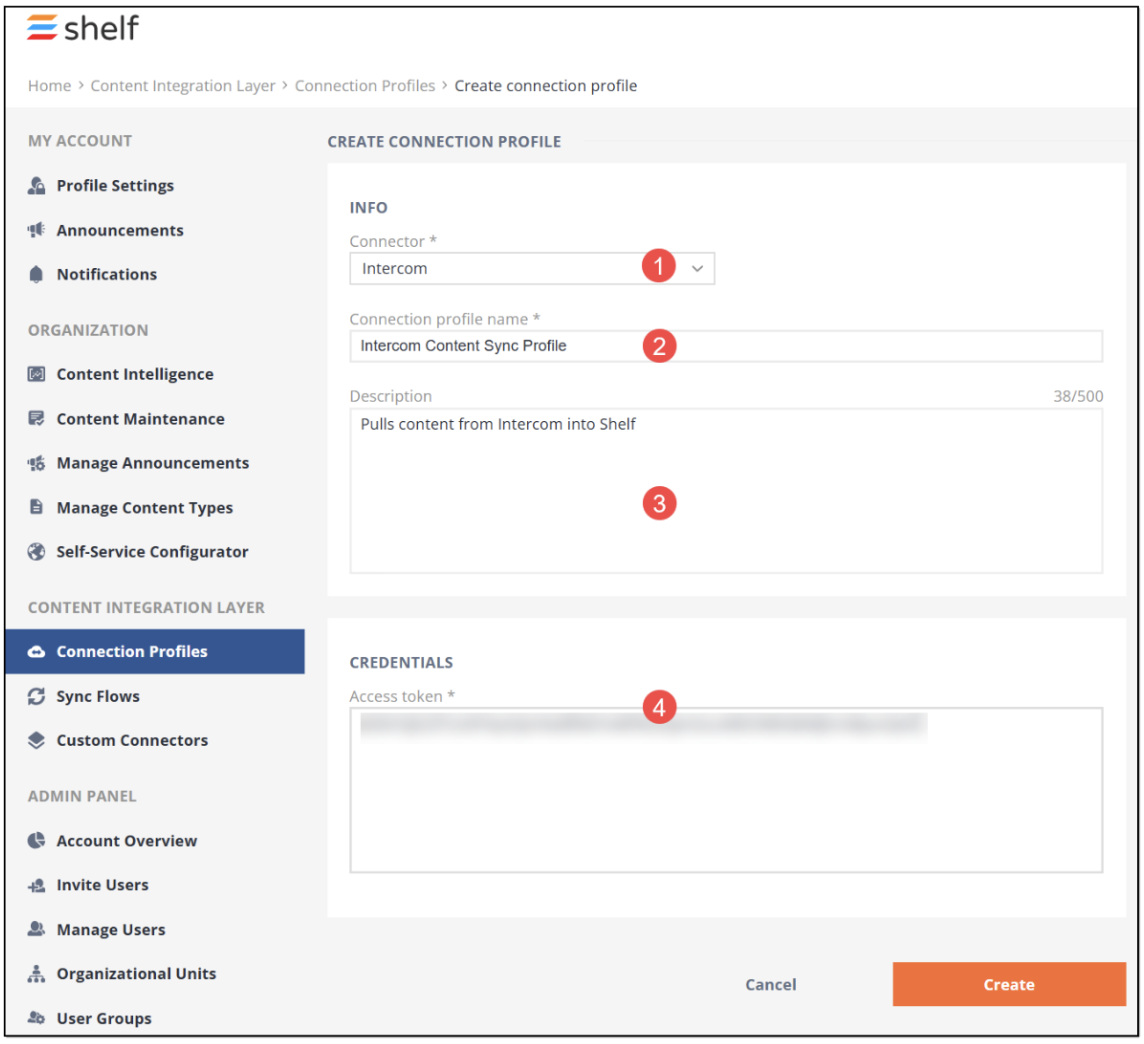 Figure 30. Configuring Intercom connection profile in Shelf
In the CREDENTIALS section, the Access token field, you need to enter the access token value you have previously found and copied when configuring your Shelf integration in Intercom.
❗Note:
Fields with the asterisk symbol (*) are mandatory. If they are left blank, you are not able to save the connection profile you are creating.
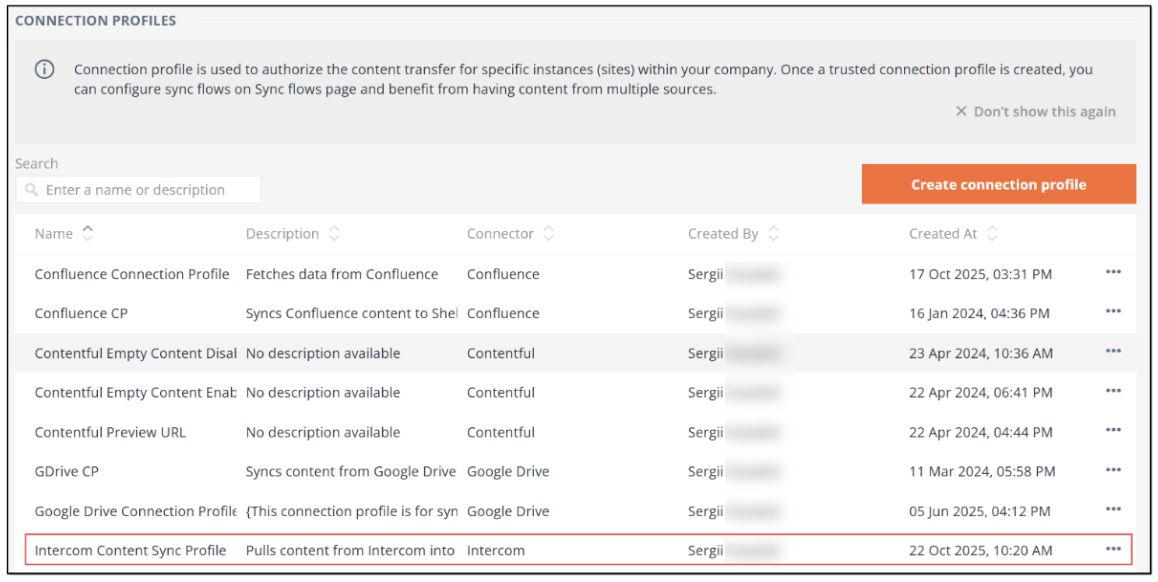
Figure 31. Verifying Intercom connection profile is available
Configuring Intercom sync flow
Now that you have configured the Intercom connector and connection profile, you need to create and configure the Intercom sync flow. Sync flows are basically sets of instructions telling Shelf KMS what content and when it needs to pull from external sources, in our case—Intercom.
To create and configure the Intercom sync flow, perform the following steps.
1) In the Admin panel in Shelf KMS, go to the Content Integration Layer section, find and select the Sync Flows option. Then, on the SYNC FLOWS page that opens, click Create sync flow.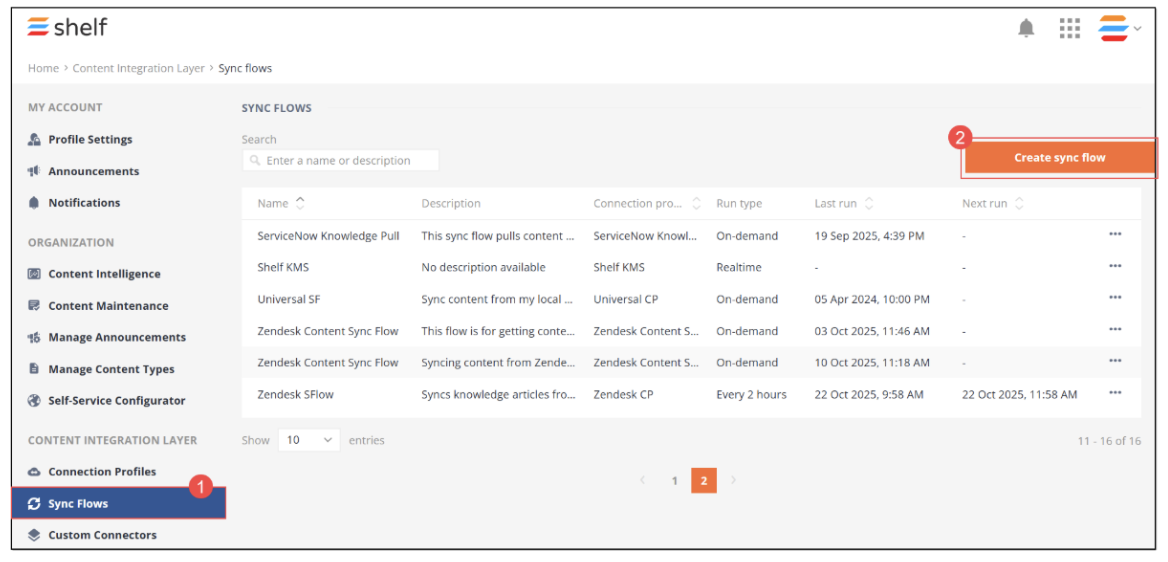 Figure 32. Starting creating Intercom sync flow
2) In the CREATE SYNC FLOW form that appears, select the needed connection profile from the dropdown list (1) that opens if you click in the respective field. In our case—Intercom Content Sync Profile. Add some title (2) for your sync flow, and description (3) if needed. 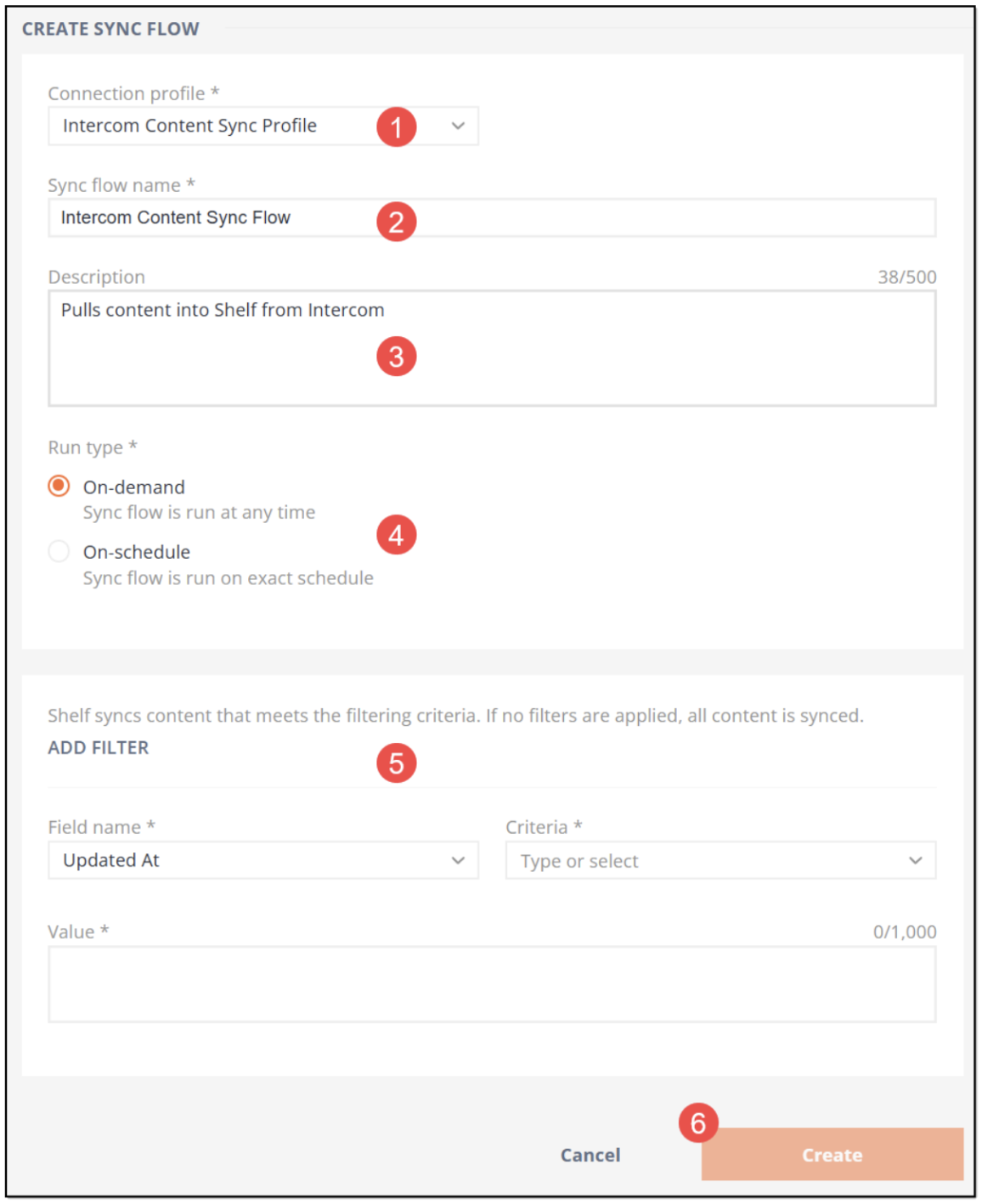 Figure 33. Configuring Intercom sync flow
3) You also need to tell Shelf how to run content synchronization (4): if you want it to be a scheduled procedure, select the On-schedule checkbox, and if it needs to be a manual procedure, select the On-demand checkbox. 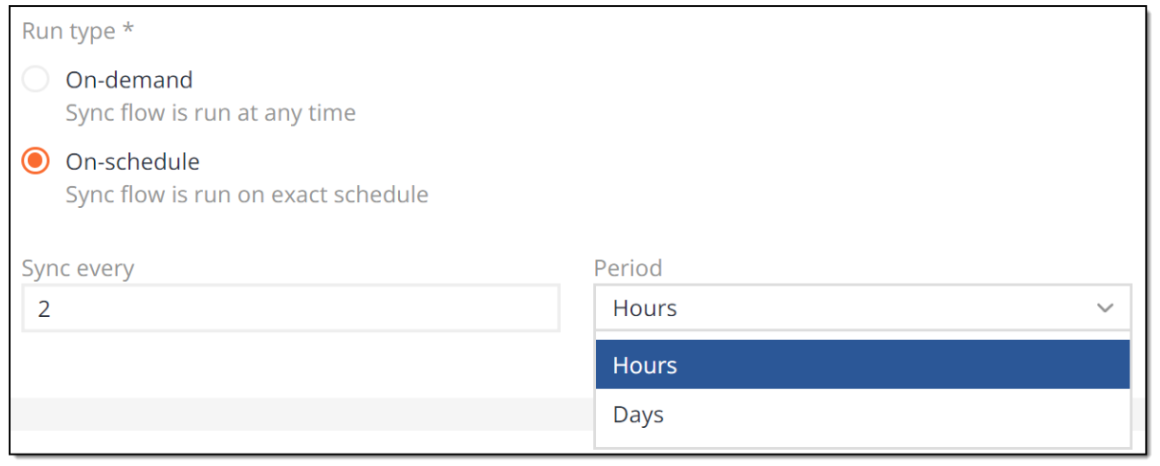 Figure 34. Configuring scheduled run of Intercom sync flow4) Finally, you can optionally add filters to apply to the content syncing from Intercom into Shelf KMS. To do so, click ADD FILTER (5) and then select the filter type, criterion, and value. Note that Intercom connector currently supports only one filter—Updated At.
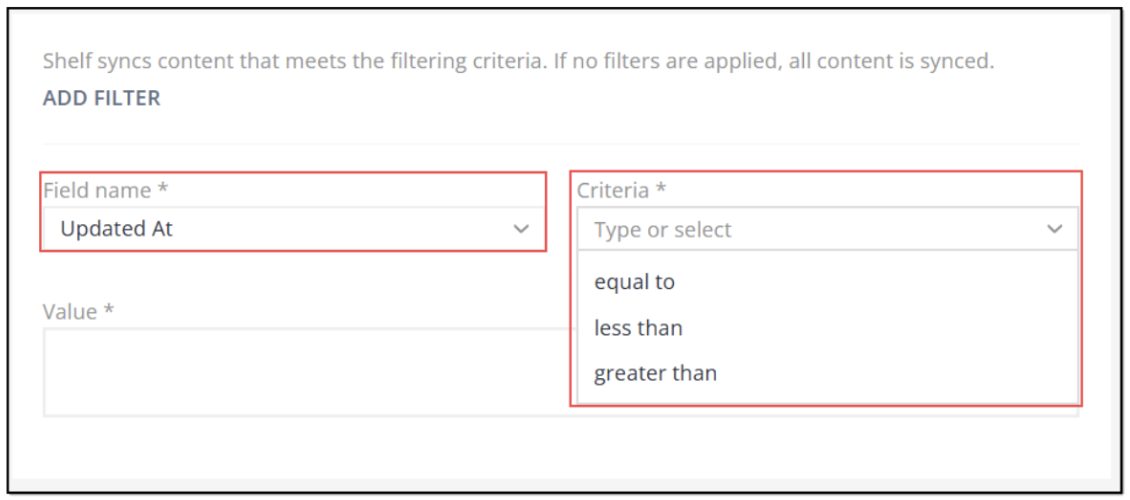 Figure 34.1. Adding filter to streamline content sync from Intercom to Shelf
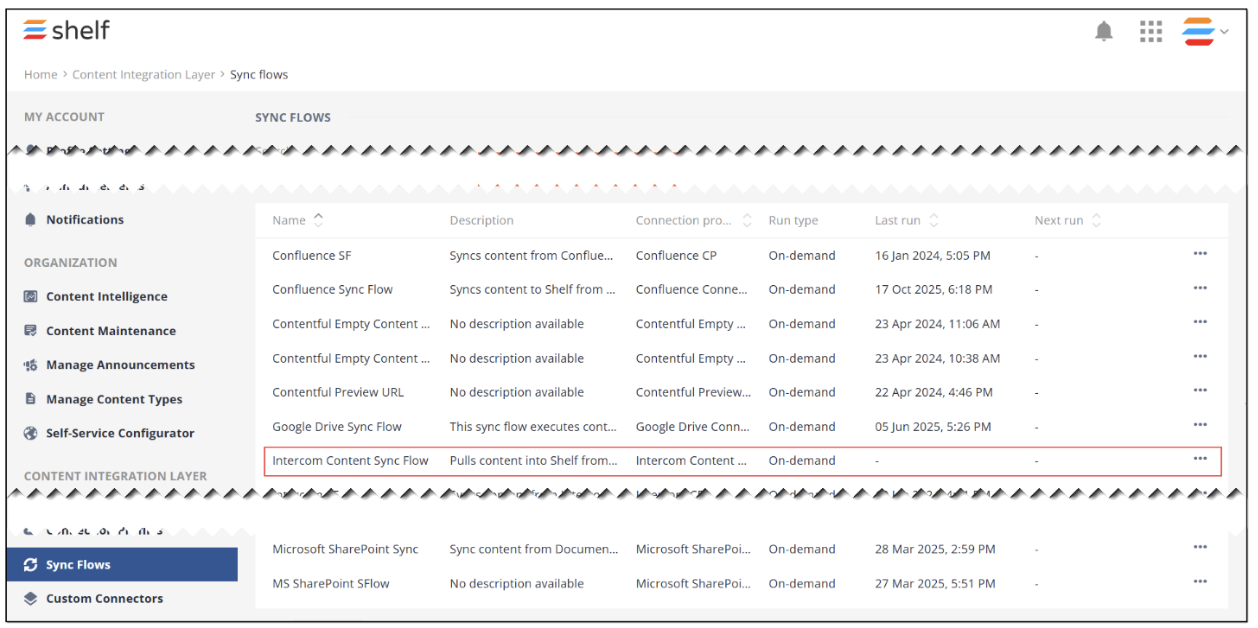
Figure 35. Verifying Intercom sync flow is created and available
Running Intercom sync job
Once you have created the Intercom sync flow, you can either wait until it performs the content sync per schedule (if you have selected the On-schedule option for the sync flow run type), or start the sync manually at any time (if you have selected the On-demand option for the run type).
To manually start syncing your content from Intercom into Shelf, follow the below steps.
1) Open the newly created Intercom sync flow (Figure 35 above), find and go to the Jobs tab in its window.
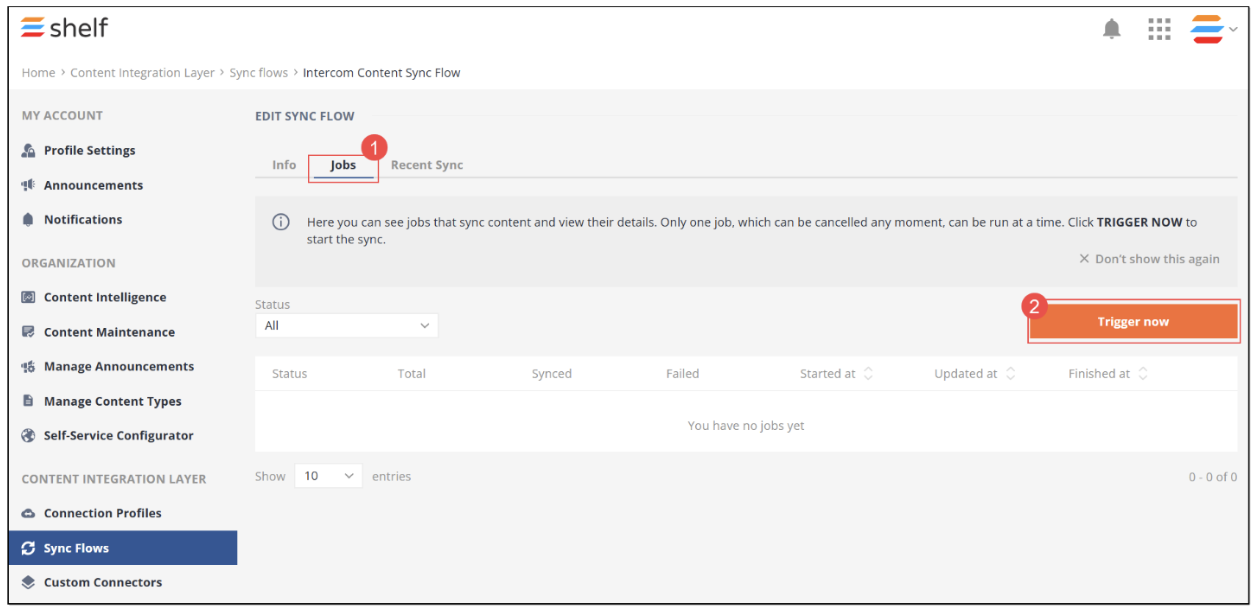 Figure 36. Manually running content syncing from Intercom into Shelf
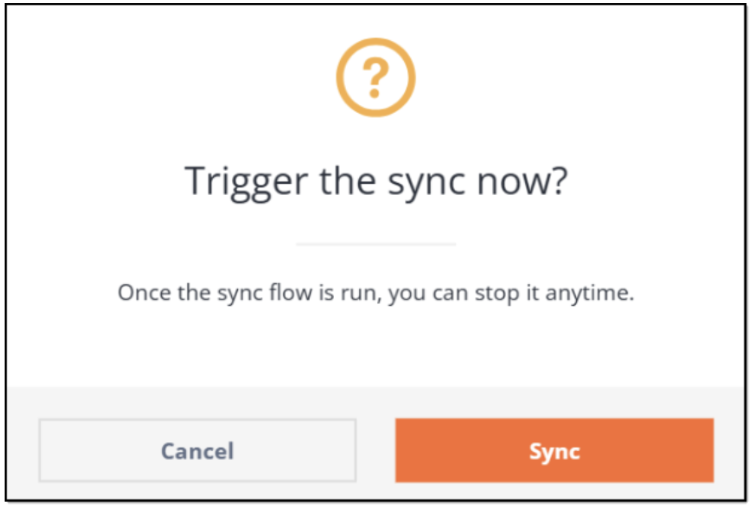 Figure 37. Confirming sync job start
4) Once done, the sync job is started and becomes visible in the list of sync jobs.
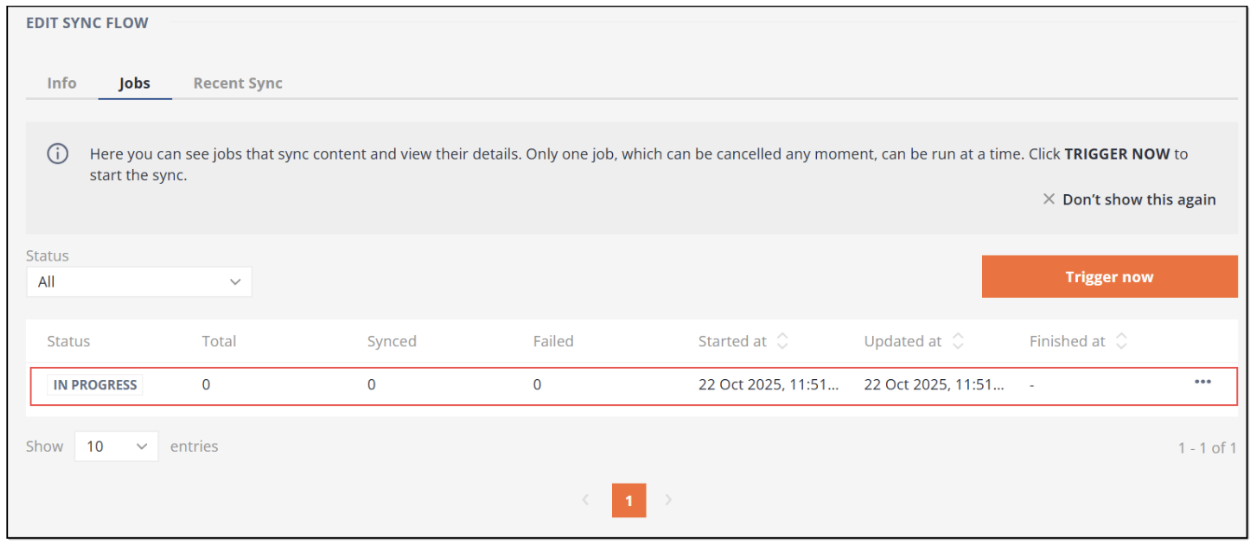 Figure 38. Viewing sync job running
❗Note:
The sync job can be triggered manually both for the on-schedule and on-demand sync flows, unless there is a sync job running at that time.
In the first case, the manually triggered job overrides the schedule set for the sync flow. At the same time, the sync flow execution will resume to occur per schedule after the manually triggered sync job is finished. If you manually trigger the sync flow job, it starts immediately.
If there is a running sync job in this sync flow when you attempt to start a new job, this new job will not be created and, respectively, the content sync will not be started. In this case you will see the error message informing that the job is already running.
If there are no other sync jobs running in this sync flow, the Jobs tab window refreshes, and a new job with the IN PROGRESS status appears in the table grid.
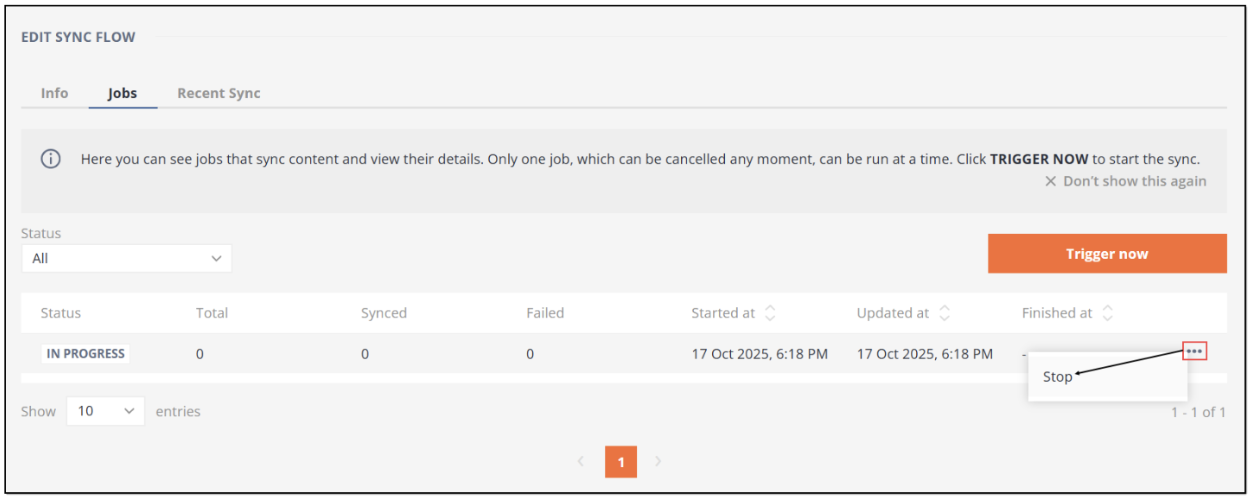 Figure 40. Viewing the recently synced content from Intercom
Configuring Intercom permissions in User Groups
Even when you successfully configured the Intercom connector, connection profile, sync flow, run the sync job and pulled the content from your Intercom repository, you need to add Intercom collections to the permitted sources via Shelf’s User Groups feature. Otherwise, you will not be able to search for the synced content and otherwise manage it in Shelf KMS.
To set the mentioned collection permissions, go back to the Admin panel where find and select the User Groups option in the left sidebar menu. Select the needed user group from the list to open it.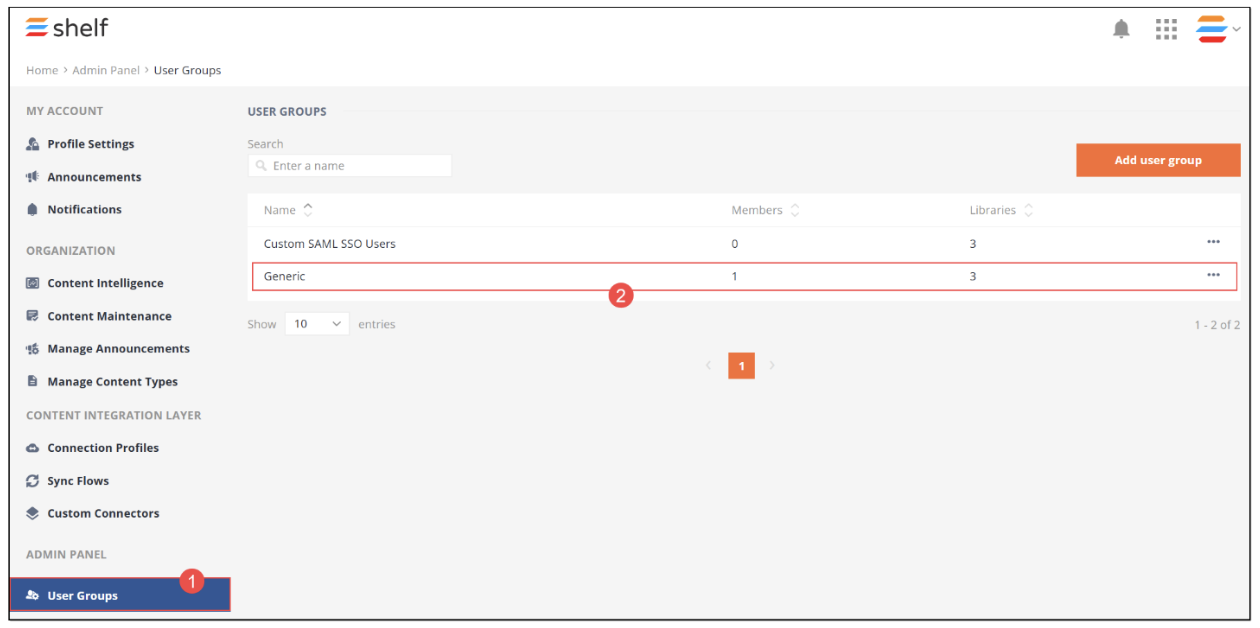 Figure 41. Accessing User Groups in Shelf
In the selected user group window that opens, go and select the Collection permissions tab. Once it opens, click the Add collections button.
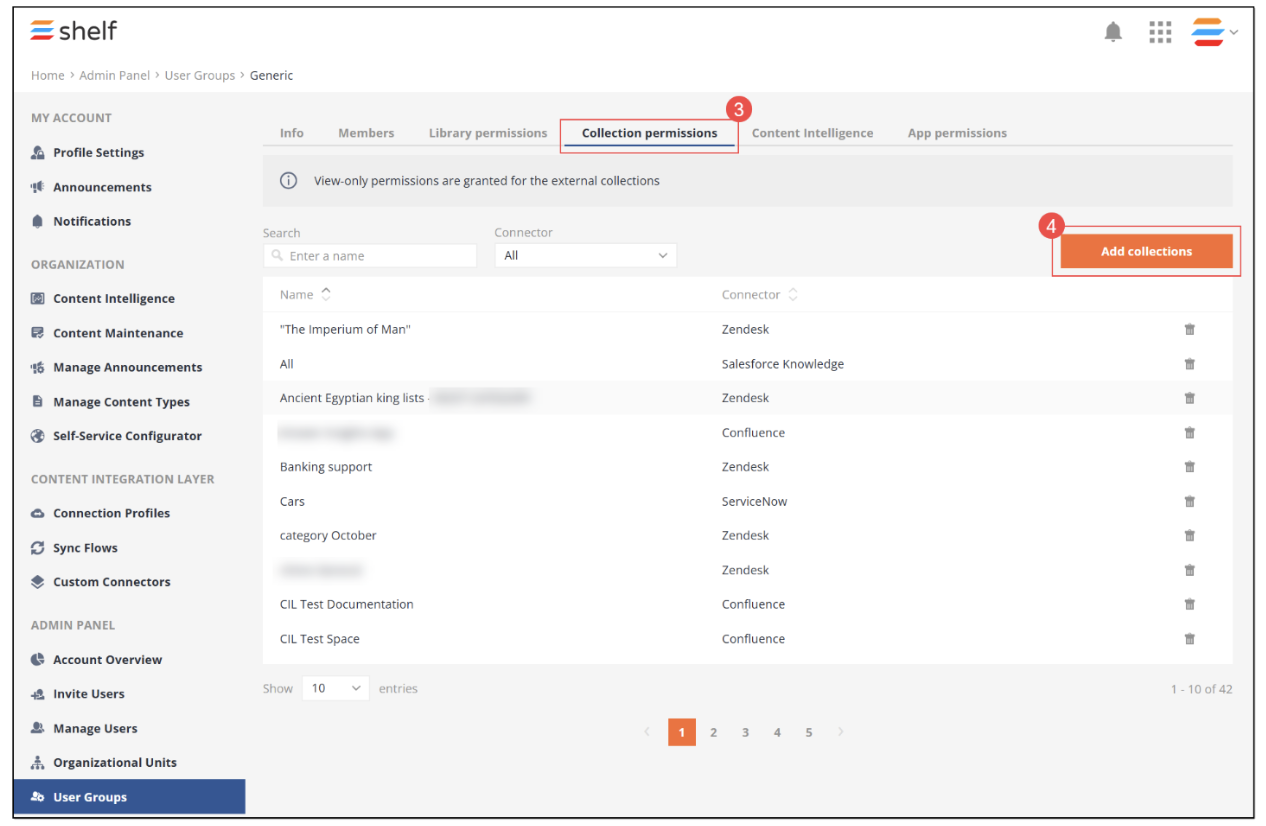 Figure 42. Starting to set Intercom collection permissions in Shelf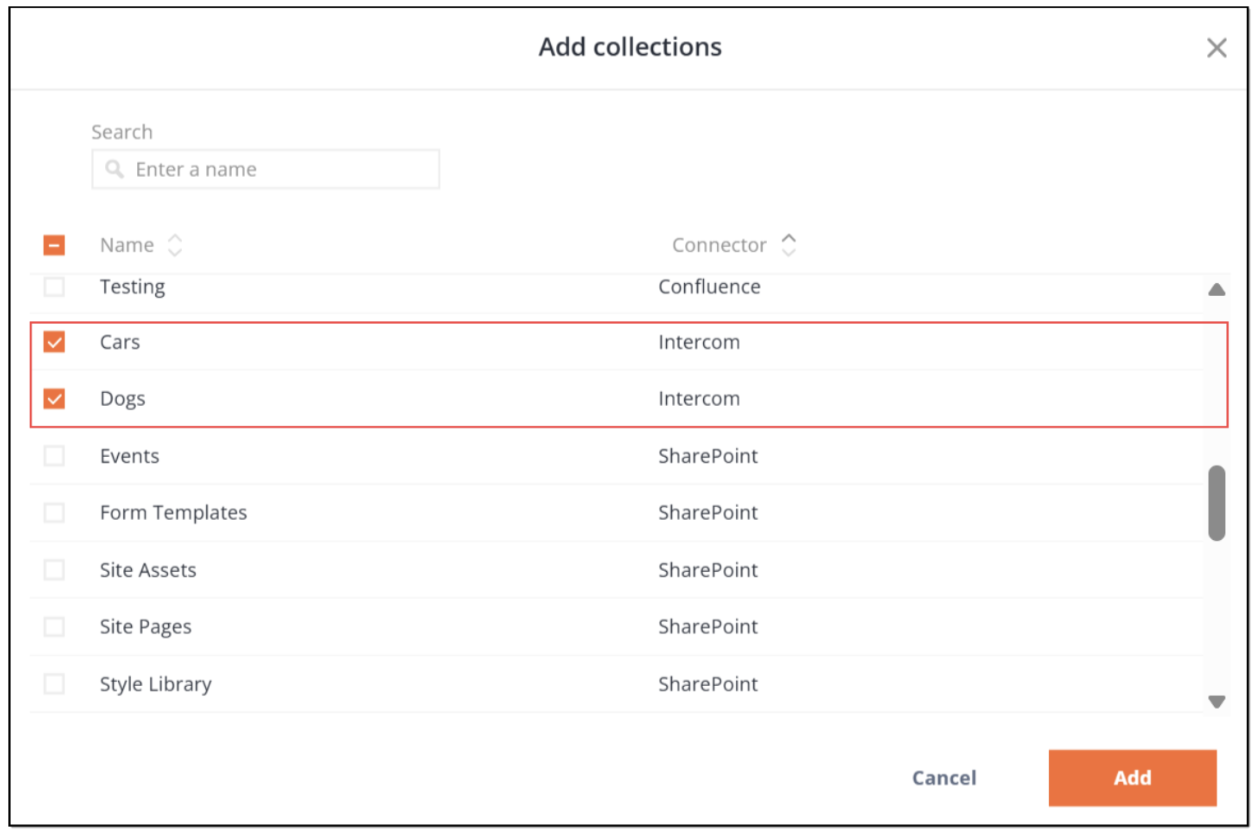
Figure 43. Selecting Intercom collections
Confirm your choice by clicking the Add button. Once the collections are added, they appear in the list.
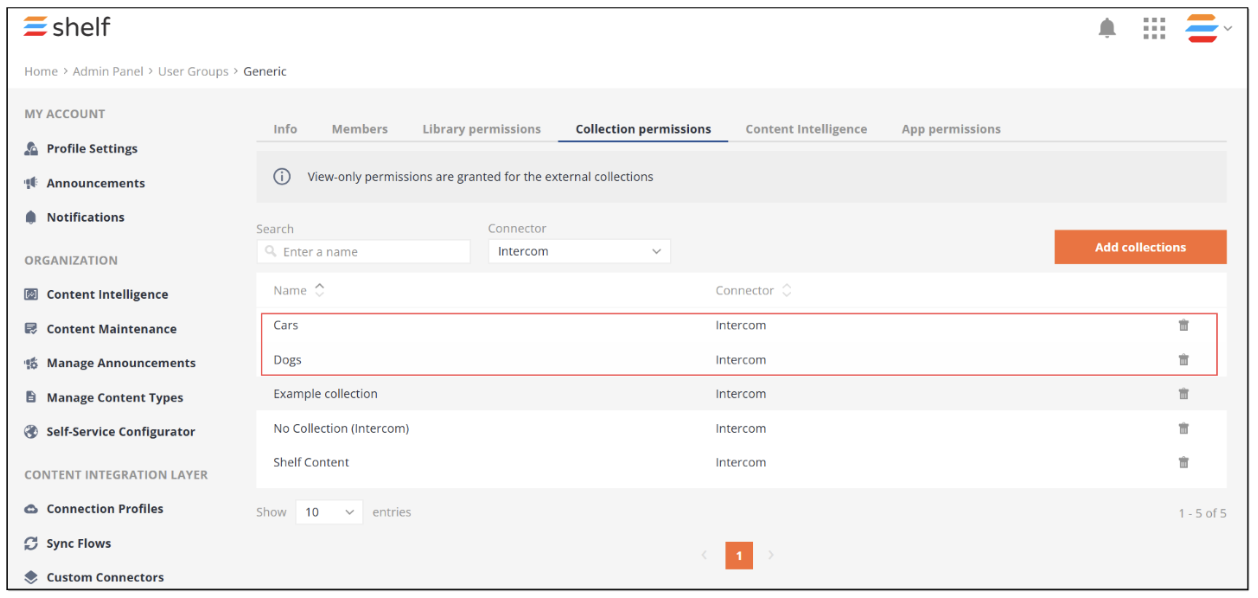 Figure 44. Viewing added Intercom collections
Once done, you are finished with all the configurations needed to sync content from Intercom into Shelf KMS using the Intercom connector.
Viewing Intercom resources in Shelf
After completing all the configurations on your Intercom connector and associated features and options, you can now view and work with the content synced into Shelf KMS from your Intercom repository.
Go back to Shelf KMS homepage and select Intercom as the needed source in the navigation panel.
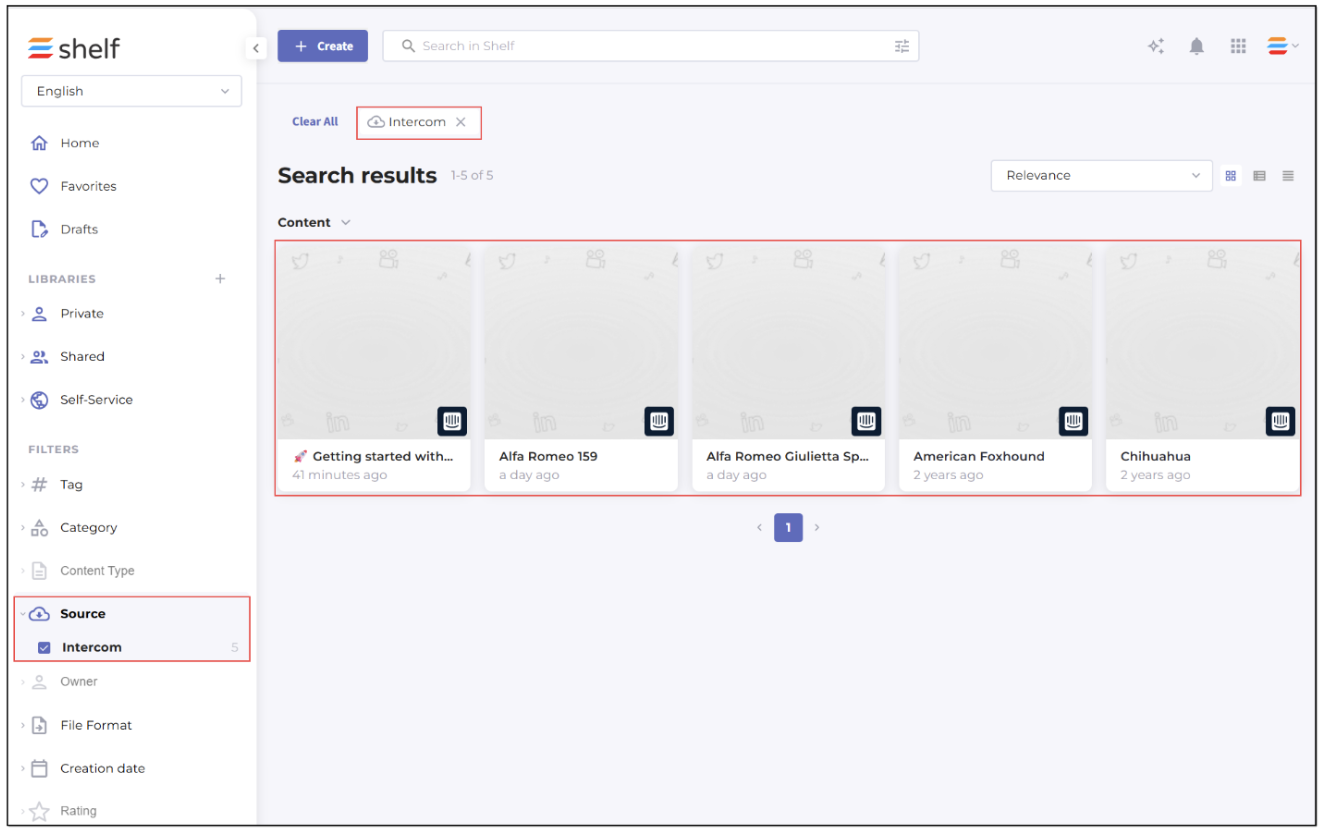 Figure 45. Viewing content synced from Intercom into Shelf
Note that if you select any content item synced from Intercom it will open in Intercom not in Shelf KMS.
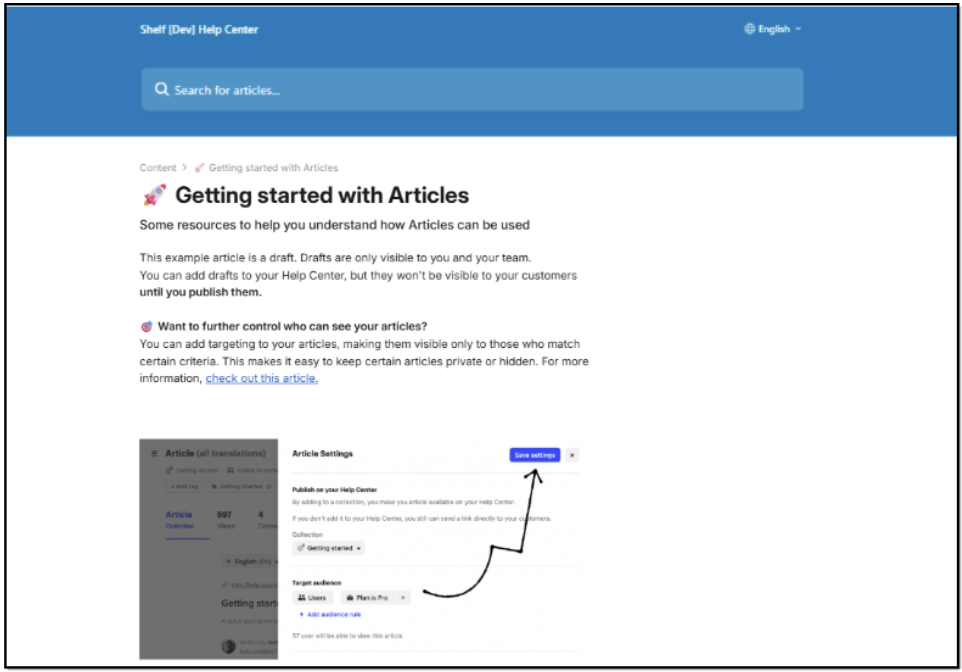
Figure 46. Viewing content item in Intercom
Now, you can enjoy all the benefits, including the AI-enabled features such as Search and Analytics Copilots, of Shelf KMS in relation to your content synced from Intercom.
In particular, you can filter this content using the Collections filter in Shelf KMS’s advanced search, as shown in the figure below.
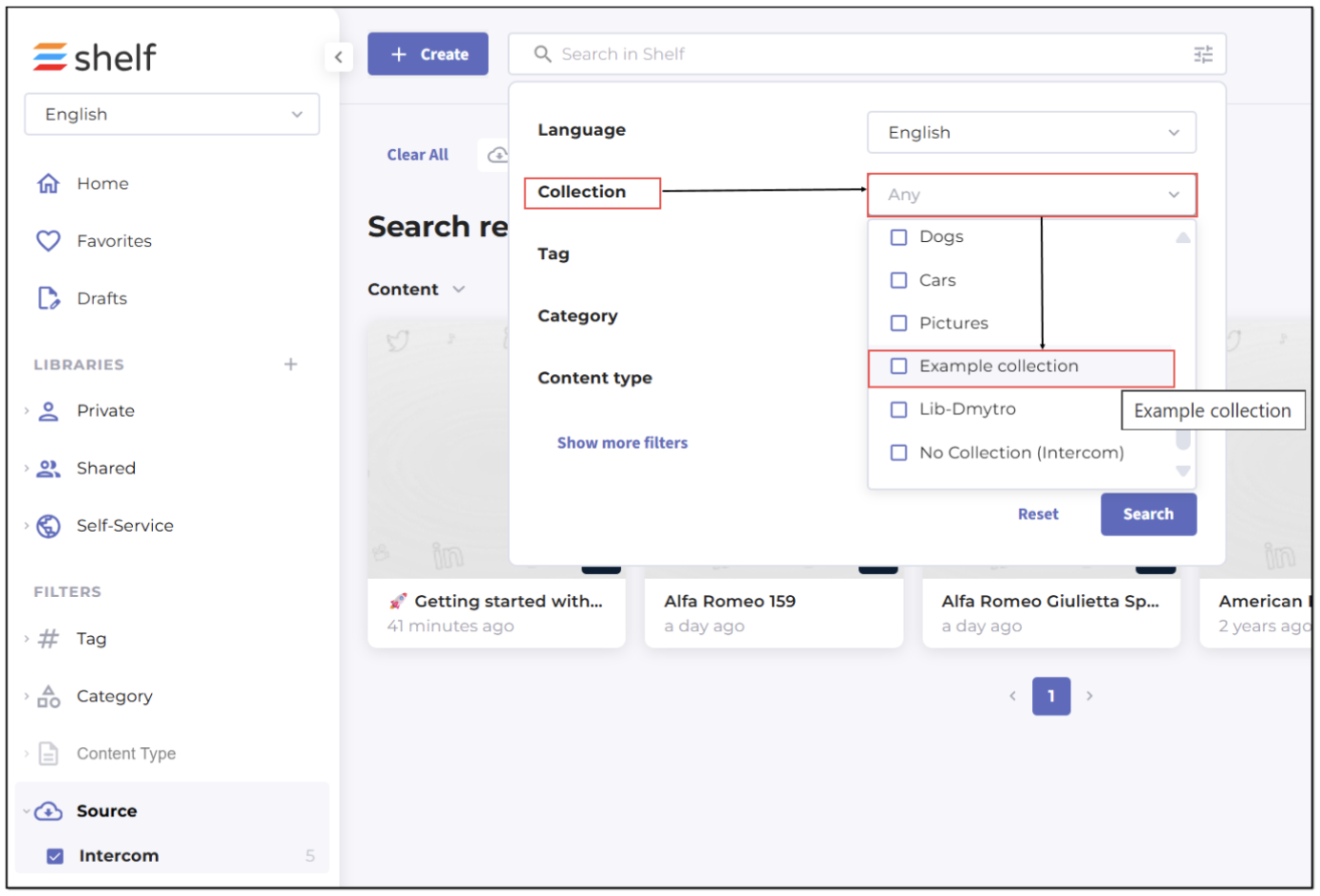 Figure 47. Searching synced content using Collections filter in Shelf KMS search
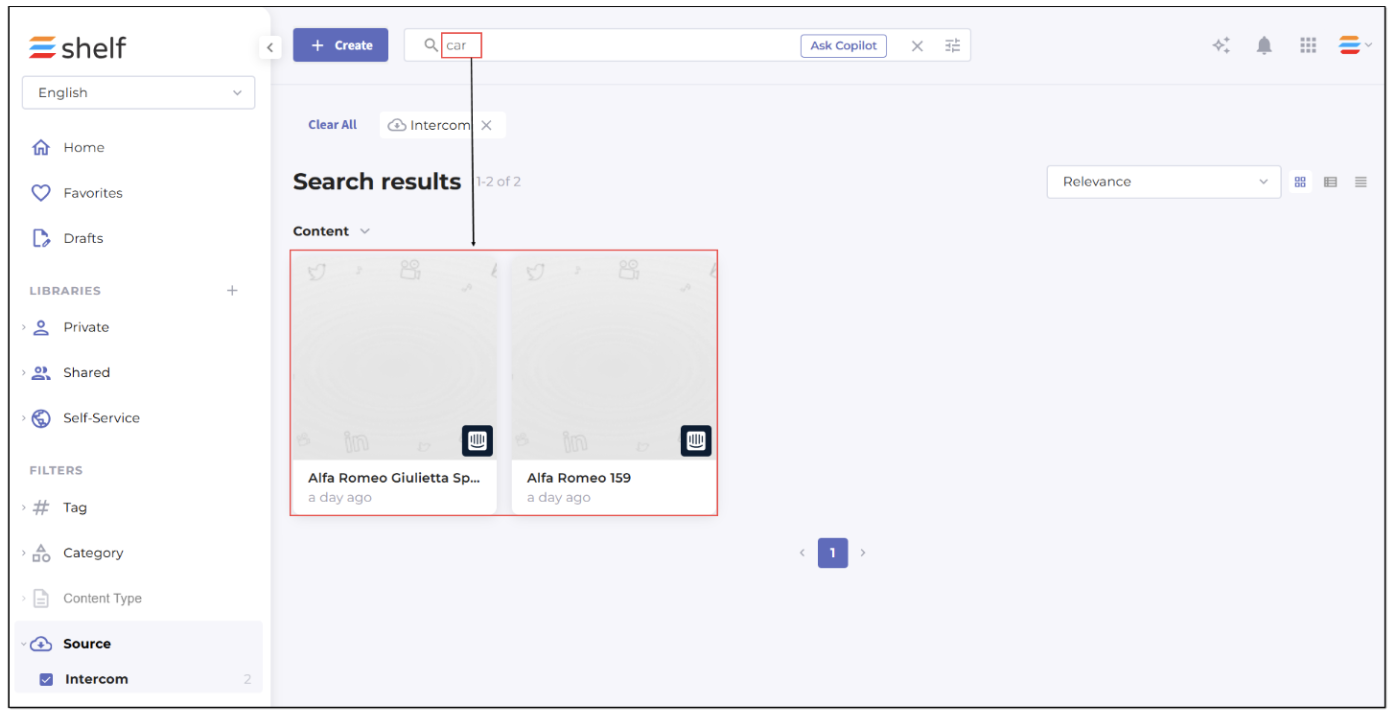 Figure 48. Viewing search results for Intercom articles